Reading responses
Combine short reactions to a chapter or article and use the largest words to begin a discussion about theme, character, evidence, and interpretation.
Turn student responses, vocabulary, lesson notes, and class feedback into a visual summary that makes common themes easy to discuss.
Lesson keywords, classroom reflections, reading responses, and student feedback.
Word clouds work best in the classroom when the size of each word has a clear meaning. Paste anonymous exit-ticket answers, reading reflections, brainstorming notes, or survey responses so repeated terms become more prominent. Before generating the result, remove common filler words and combine spelling variants so the visualization represents the class accurately.
Use the finished word cloud as a discussion prompt rather than a final analysis. Ask students why certain terms are large, which important ideas may be missing, and how the result changes when the source text changes. A simple horizontal layout is easiest to read on classroom screens, while book, subject, or custom shapes can support posters and project displays.
Combine short reactions to a chapter or article and use the largest words to begin a discussion about theme, character, evidence, and interpretation.
Summarize what students understood, what remains confusing, and which concepts need another explanation in the next lesson.
Build a visual review from key terms, definitions, examples, and related concepts, then ask students to explain the connections.
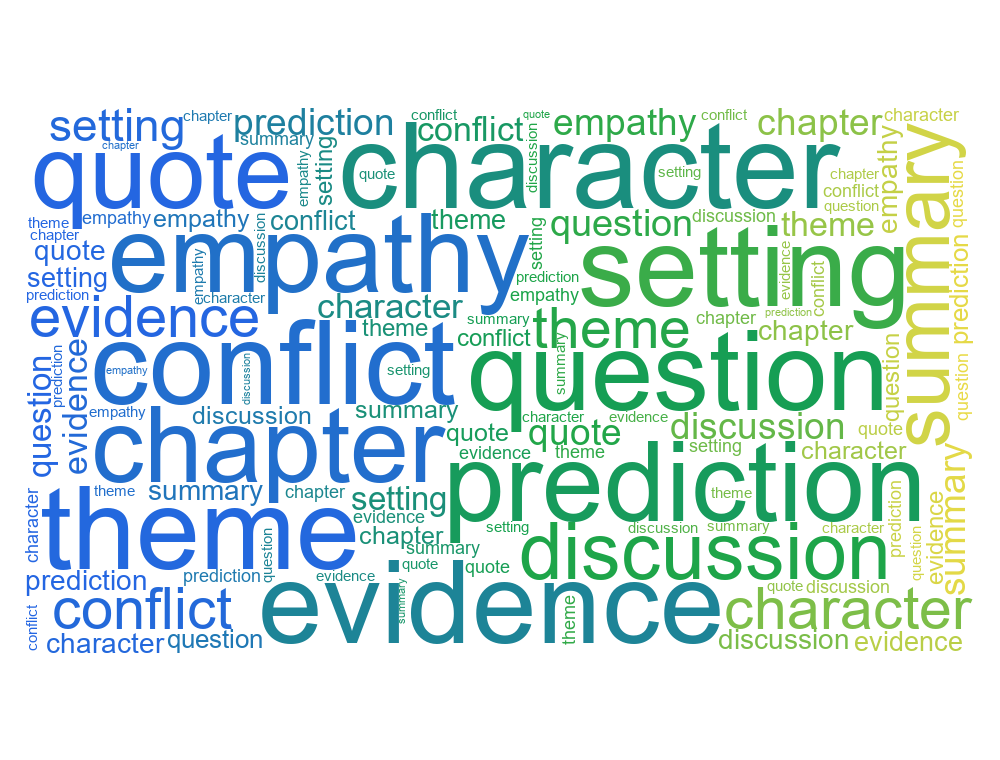
Student responses after a reading lesson.
Common answers from exit tickets after a math lesson.
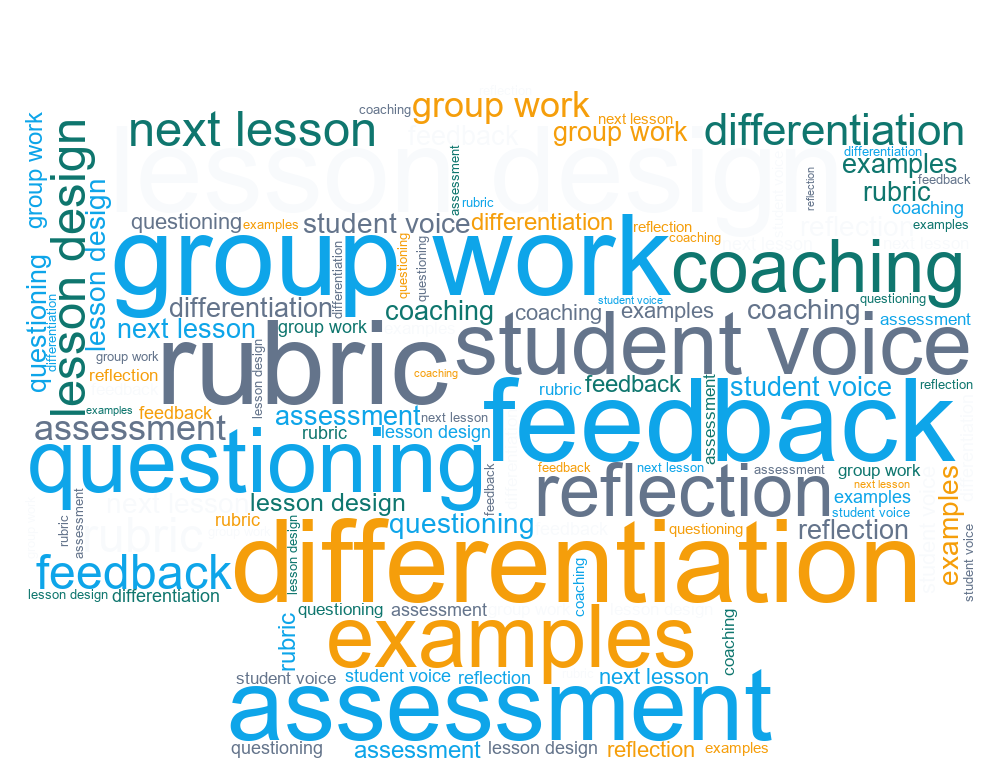
Professional development themes from a teacher workshop.
Collect responses without names, paste the text into the editor, remove filler words, review the extracted terms, and generate the cloud. Repeated answers will receive more visual weight.
Students can begin creating with the core editor without signing in. Teachers should still avoid pasting personal or sensitive student information.
Export PNG for quick insertion or SVG for sharper scaling, then add the file to PowerPoint, Google Slides, or another presentation tool.