
Reading reflection
Turn student responses into a calm discussion slide with clear themes.
Presentation tool
Start with a clean, classroom-ready example, then adjust its language, template, slide size, background, color scheme, and word layout. Every change updates the real preview automatically.
AI creative director
| Search | Frequency | Color |
|---|
Set word cloud motion and export animated SVG, GIF, or MP4.
Leave empty to animate all words. When target words are specified, only matching words will be animated.
Animation settings will be applied to downloaded GIF and animated SVG formats. Select the corresponding format in the download dialog to use these settings.
Click "Template" in the left sidebar, enter the template selection area, you can select templates by category or search templates using keywords. Currently includes Classic templates and 3D templates.
In the template category, select the "Geometry" category to see shape templates such as circles, pentagons, rectangles, triangles, etc.
Click "Settings" in the left sidebar, enter the settings area, click the "Select Font" dropdown to choose a font according to your preference.
Click "Settings" in the left sidebar, enter the settings area, check "Allow Duplicates".
Click "Settings" in the left sidebar, enter the settings area, adjust the maximum value in the "Max Words" input box. Usually 150~200 words work best.
Click "Settings" in the left sidebar, enter the settings area, you can use the built-in color schemes. Includes 4-color, 6-color, 8-color, 10-color schemes. After selection, you can choose the corresponding color scheme.
Click "Settings" in the left sidebar, enter the settings area, click the plus sign below Custom to add colors as needed.
Fill template means filling words inside the template area. Click "Settings" in the left sidebar, enter the settings area, find Render Mode, and select Fill Template.
Surround template means placing words around the outside of the template to highlight the template theme area. Click "Settings" in the left sidebar, enter the settings area, find Render Mode, and select Surround Template.
Click "Settings" in the left sidebar, enter the settings area, click Size, and select the size as needed.
Click the down arrow in the right edit area to pop up download options, you can set the download format as needed.
In the right edit area, click the down arrow, in the download popup, select PNG format and transparent background, then click download.
In the right edit area, click the down arrow, in the download popup, select SVG to download.
In the right edit area, click the down arrow, in the download popup, select PNG to download.
In the right edit area, click the down arrow, in the download popup, select JPG to download.
In the right edit area, click the brush to enter edit mode. Move to the image area, select a word, a color picker will pop up, you can modify the word color as needed.
In the right edit area, click the brush to enter edit mode. Move to the image area, select a word, you can drag to adjust the word size.
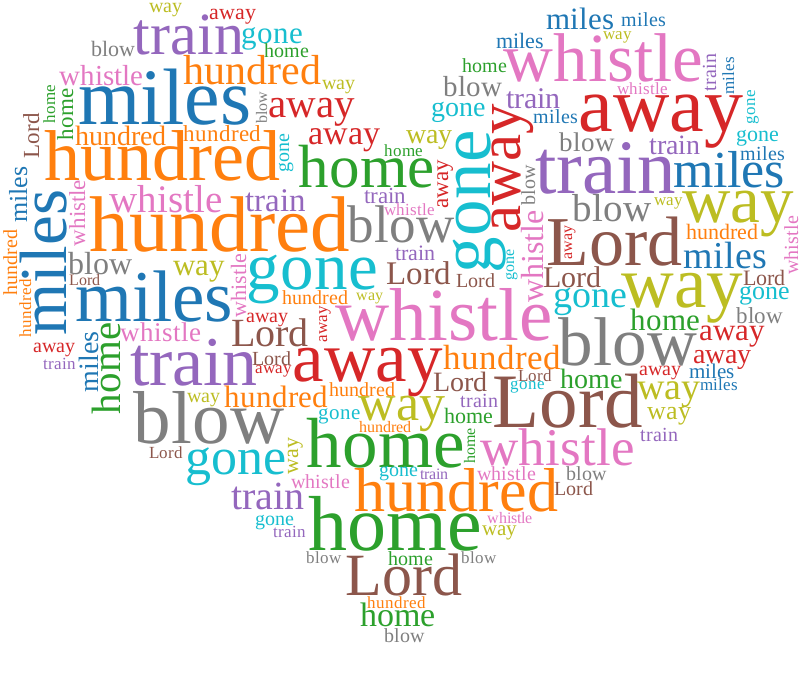
Start with a workshop, reading reflection, or exit-ticket word cloud in a slide-ready ratio.
Switch the language, color scheme, and word layout while the preview updates automatically.
Add your own lesson text and fine-tune shapes, fonts, and export settings on the homepage.
Turn student responses into a calm discussion slide with clear themes.
Summarize check-ins, questions, and lesson takeaways without visual clutter.
Make planning notes, feedback, and next steps easy to scan.
Best for fast placement on an existing slide background. It keeps the surrounding slide visible.
Best when you need crisp scaling or want to recolor and adjust the graphic after inserting it.
Download PNG or SVG, then use Insert > Pictures in PowerPoint. You can also use Copy image in supported browsers and paste directly onto the slide.
Use transparent PNG for the quickest workflow. Use SVG when you need vector sharpness, large-format output, or more editing control.
Yes. Open the full editor and paste the responses there. Repeated terms receive more visual weight, which makes common themes easier to present.
The full editor creates slide-ready PNG and SVG graphics. Insert the downloaded graphic into your existing PowerPoint deck.
Microsoft PowerPoint is a trademark of the Microsoft group of companies. Wordcloud.art is not affiliated with or endorsed by Microsoft.