
要旨
KPI、リスク、次の四半期の優先事項の背後にあるテーマを明らかにします。
プレゼンテーションツール
スライドの準備ができたサンプルから始めて、言語、テンプレート、スライドサイズ、背景、配色、単語のレイアウトを調整します。変更を加えるたびに、実際のプレビューが自動的に更新されます。
AIクリエイティブディレクター
| 検索 | 頻度 | 色 |
|---|
動きを設定し、SVG・GIF・MP4 で書き出せます。
Leave empty to animate all words. When target words are specified, only matching words will be animated.
Animation settings will be applied to downloaded GIF and animated SVG formats. Select the corresponding format in the download dialog to use these settings.
Click "Template" in the left sidebar, enter the template selection area, you can select templates by category or search templates using keywords. Currently includes Classic templates and 3D templates.
In the template category, select the "Geometry" category to see shape templates such as circles, pentagons, rectangles, triangles, etc.
Click "Settings" in the left sidebar, enter the settings area, click the "Select Font" dropdown to choose a font according to your preference.
Click "Settings" in the left sidebar, enter the settings area, check "Allow Duplicates".
Click "Settings" in the left sidebar, enter the settings area, adjust the maximum value in the "Max Words" input box. Usually 150~200 words work best.
Click "Settings" in the left sidebar, enter the settings area, you can use the built-in color schemes. Includes 4-color, 6-color, 8-color, 10-color schemes. After selection, you can choose the corresponding color scheme.
Click "Settings" in the left sidebar, enter the settings area, click the plus sign below Custom to add colors as needed.
Fill template means filling words inside the template area. Click "Settings" in the left sidebar, enter the settings area, find Render Mode, and select Fill Template.
Surround template means placing words around the outside of the template to highlight the template theme area. Click "Settings" in the left sidebar, enter the settings area, find Render Mode, and select Surround Template.
Click "Settings" in the left sidebar, enter the settings area, click Size, and select the size as needed.
Click the down arrow in the right edit area to pop up download options, you can set the download format as needed.
In the right edit area, click the down arrow, in the download popup, select PNG format and transparent background, then click download.
In the right edit area, click the down arrow, in the download popup, select SVG to download.
In the right edit area, click the down arrow, in the download popup, select PNG to download.
In the right edit area, click the down arrow, in the download popup, select JPG to download.
In the right edit area, click the brush to enter edit mode. Move to the image area, select a word, a color picker will pop up, you can modify the word color as needed.
In the right edit area, click the brush to enter edit mode. Move to the image area, select a word, you can drag to adjust the word size.
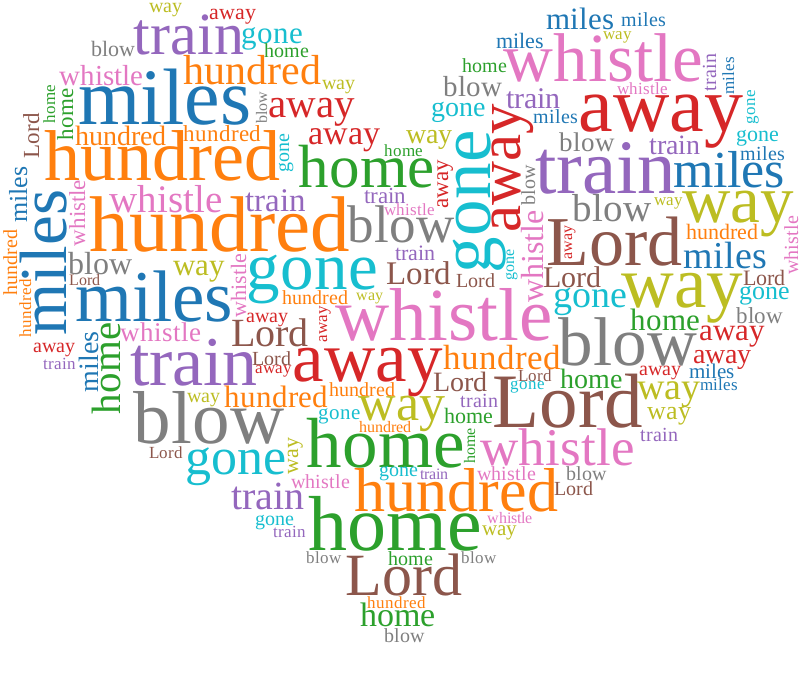
スライドに対応した比率のレポート、タウンホール、または振り返りのワードクラウドから始めます。
プレビューが自動的に更新される間に、言語、配色、単語のレイアウトを切り替えます。
独自のテキストを追加し、ホームページ上の図形、フォント、エクスポート設定を微調整します。
KPI、リスク、次の四半期の優先事項の背後にあるテーマを明らかにします。
アンケートの回答、Q&A、ワークショップのメモをディスカッション スライドに変換します。
阻害要因、結果、決定、およびその後のアクションを簡単にスキャンできるようにします。
既存のスライドの背景にすばやく配置する場合に最適です。周囲のスライドが表示されたままになります。
鮮明なスケーリングが必要な場合、またはグラフィックを挿入した後に色を変更して調整したい場合に最適です。
PNG または SVG をダウンロードし、PowerPoint で [挿入] > [画像] を使用します。サポートされているブラウザで画像をコピーし、スライドに直接貼り付けることもできます。
最も迅速なワークフローを実現するには、透過 PNG を使用します。ベクトルの鮮明さ、大判出力、またはより詳細な編集制御が必要な場合は、SVG を使用します。
はい。完全なエディターを開き、そこに回答を貼り付けます。繰り返される用語には視覚的な重みが増し、共通のテーマが提示されやすくなります。
完全なエディターは、スライド対応の PNG および SVG グラフィックを作成します。ダウンロードしたグラフィックを既存の PowerPoint デッキに挿入します。
Microsoft PowerPoint は Microsoft グループの商標です。 Wordcloud.art は Microsoft と提携または承認されていません。