
Zusammenfassungen
Erläutern Sie die Themen hinter KPIs, Risiken und Prioritäten für das nächste Quartal.
Präsentationstool
Beginnen Sie mit einem folienfertigen Beispiel und passen Sie dann Sprache, Vorlage, Foliengröße, Hintergrund, Farbschema und Wortlayout an. Bei jeder Änderung wird die tatsächliche Vorschau automatisch aktualisiert.
KI-Kreativdirektor
| Suche | Häufigkeit | Farbe |
|---|
Bewegung festlegen und als SVG, GIF oder MP4 exportieren.
Leave empty to animate all words. When target words are specified, only matching words will be animated.
Animation settings will be applied to downloaded GIF and animated SVG formats. Select the corresponding format in the download dialog to use these settings.
Click "Template" in the left sidebar, enter the template selection area, you can select templates by category or search templates using keywords. Currently includes Classic templates and 3D templates.
In the template category, select the "Geometry" category to see shape templates such as circles, pentagons, rectangles, triangles, etc.
Click "Settings" in the left sidebar, enter the settings area, click the "Select Font" dropdown to choose a font according to your preference.
Click "Settings" in the left sidebar, enter the settings area, check "Allow Duplicates".
Click "Settings" in the left sidebar, enter the settings area, adjust the maximum value in the "Max Words" input box. Usually 150~200 words work best.
Click "Settings" in the left sidebar, enter the settings area, you can use the built-in color schemes. Includes 4-color, 6-color, 8-color, 10-color schemes. After selection, you can choose the corresponding color scheme.
Click "Settings" in the left sidebar, enter the settings area, click the plus sign below Custom to add colors as needed.
Fill template means filling words inside the template area. Click "Settings" in the left sidebar, enter the settings area, find Render Mode, and select Fill Template.
Surround template means placing words around the outside of the template to highlight the template theme area. Click "Settings" in the left sidebar, enter the settings area, find Render Mode, and select Surround Template.
Click "Settings" in the left sidebar, enter the settings area, click Size, and select the size as needed.
Click the down arrow in the right edit area to pop up download options, you can set the download format as needed.
In the right edit area, click the down arrow, in the download popup, select PNG format and transparent background, then click download.
In the right edit area, click the down arrow, in the download popup, select SVG to download.
In the right edit area, click the down arrow, in the download popup, select PNG to download.
In the right edit area, click the down arrow, in the download popup, select JPG to download.
In the right edit area, click the brush to enter edit mode. Move to the image area, select a word, a color picker will pop up, you can modify the word color as needed.
In the right edit area, click the brush to enter edit mode. Move to the image area, select a word, you can drag to adjust the word size.
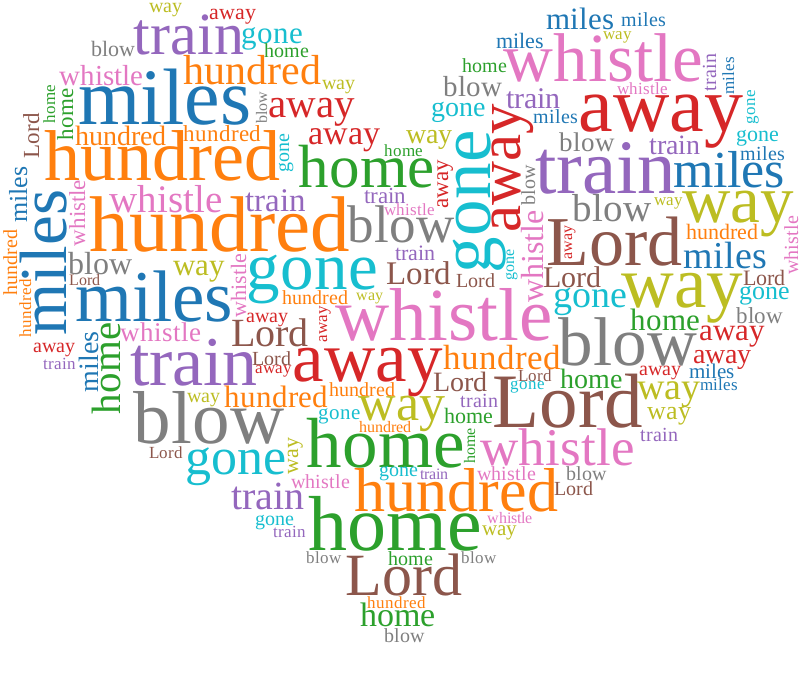
Beginnen Sie mit einem Bericht, einem Rathaus oder einer retrospektiven Wortwolke in einem folienfertigen Verhältnis.
Wechseln Sie die Sprache, das Farbschema und das Wortlayout, während die Vorschau automatisch aktualisiert wird.
Fügen Sie Ihren eigenen Text hinzu und passen Sie Formen, Schriftarten und Exporteinstellungen auf der Startseite an.
Erläutern Sie die Themen hinter KPIs, Risiken und Prioritäten für das nächste Quartal.
Verwandeln Sie Umfrageantworten, Fragen und Antworten sowie Workshopnotizen in eine Diskussionsfolie.
Machen Sie Blockaden, Ergebnisse, Entscheidungen und Folgeaktionen einfach zu scannen.
Ideal für die schnelle Platzierung auf einem vorhandenen Folienhintergrund. Dadurch bleibt die umgebende Folie sichtbar.
Ideal, wenn Sie eine klare Skalierung benötigen oder die Grafik nach dem Einfügen neu einfärben und anpassen möchten.
Laden Sie PNG oder SVG herunter und verwenden Sie dann Einfügen > Bilder in PowerPoint. Sie können in unterstützten Browsern auch „Bild kopieren“ verwenden und direkt auf der Folie einfügen.
Verwenden Sie transparentes PNG für den schnellsten Arbeitsablauf. Verwenden Sie SVG, wenn Sie Vektorschärfe, großformatige Ausgabe oder mehr Bearbeitungskontrolle benötigen.
Ja. Öffnen Sie den vollständigen Editor und fügen Sie die Antworten dort ein. Wiederholte Begriffe erhalten mehr visuelles Gewicht, wodurch gemeinsame Themen leichter dargestellt werden können.
Der vollständige Editor erstellt folienfertige PNG- und SVG-Grafiken. Fügen Sie die heruntergeladene Grafik in Ihr vorhandenes PowerPoint-Deck ein.
Microsoft PowerPoint ist eine Marke der Microsoft-Unternehmensgruppe. Wordcloud.art ist nicht mit Microsoft verbunden oder wird von Microsoft unterstützt.