
Resúmenes ejecutivos
Descubra los temas detrás de los KPI, los riesgos y las prioridades del próximo trimestre.
herramienta de presentación
Comience con un ejemplo listo para diapositivas y ajuste el idioma, la plantilla, el tamaño de la diapositiva, el fondo, la combinación de colores y la disposición de las palabras. Cada cambio actualiza la vista previa real automáticamente.
Director creativo de IA
| Buscar | Frecuencia | Color |
|---|
Configura el movimiento y exporta SVG, GIF o MP4.
Leave empty to animate all words. When target words are specified, only matching words will be animated.
Animation settings will be applied to downloaded GIF and animated SVG formats. Select the corresponding format in the download dialog to use these settings.
Click "Template" in the left sidebar, enter the template selection area, you can select templates by category or search templates using keywords. Currently includes Classic templates and 3D templates.
In the template category, select the "Geometry" category to see shape templates such as circles, pentagons, rectangles, triangles, etc.
Click "Settings" in the left sidebar, enter the settings area, click the "Select Font" dropdown to choose a font according to your preference.
Click "Settings" in the left sidebar, enter the settings area, check "Allow Duplicates".
Click "Settings" in the left sidebar, enter the settings area, adjust the maximum value in the "Max Words" input box. Usually 150~200 words work best.
Click "Settings" in the left sidebar, enter the settings area, you can use the built-in color schemes. Includes 4-color, 6-color, 8-color, 10-color schemes. After selection, you can choose the corresponding color scheme.
Click "Settings" in the left sidebar, enter the settings area, click the plus sign below Custom to add colors as needed.
Fill template means filling words inside the template area. Click "Settings" in the left sidebar, enter the settings area, find Render Mode, and select Fill Template.
Surround template means placing words around the outside of the template to highlight the template theme area. Click "Settings" in the left sidebar, enter the settings area, find Render Mode, and select Surround Template.
Click "Settings" in the left sidebar, enter the settings area, click Size, and select the size as needed.
Click the down arrow in the right edit area to pop up download options, you can set the download format as needed.
In the right edit area, click the down arrow, in the download popup, select PNG format and transparent background, then click download.
In the right edit area, click the down arrow, in the download popup, select SVG to download.
In the right edit area, click the down arrow, in the download popup, select PNG to download.
In the right edit area, click the down arrow, in the download popup, select JPG to download.
In the right edit area, click the brush to enter edit mode. Move to the image area, select a word, a color picker will pop up, you can modify the word color as needed.
In the right edit area, click the brush to enter edit mode. Move to the image area, select a word, you can drag to adjust the word size.
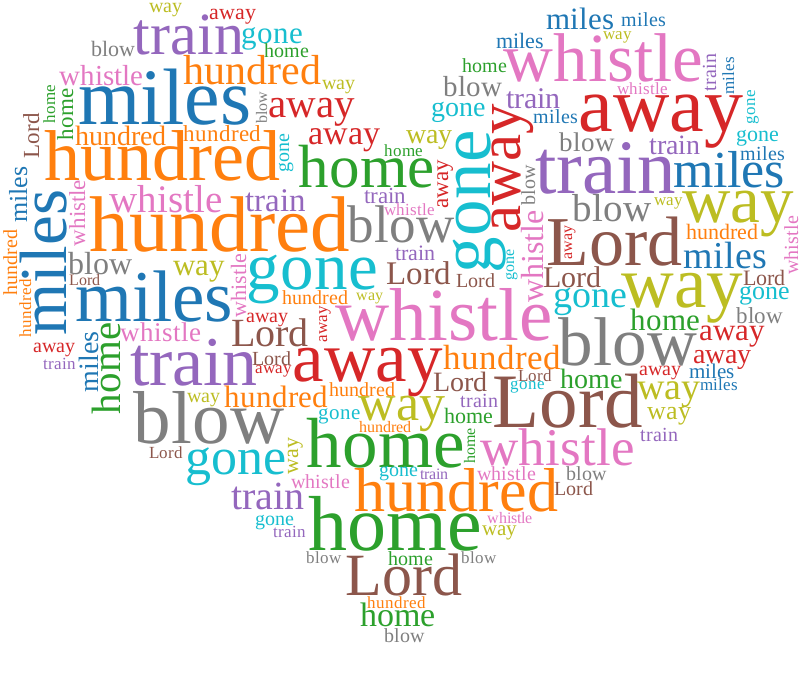
Comience con un informe, un ayuntamiento o una nube de palabras retrospectiva en una proporción lista para diapositivas.
Cambie el idioma, la combinación de colores y el diseño de las palabras mientras la vista previa se actualiza automáticamente.
Agregue su propio texto y ajuste formas, fuentes y configuraciones de exportación en la página de inicio.
Descubra los temas detrás de los KPI, los riesgos y las prioridades del próximo trimestre.
Convierta las respuestas de las encuestas, las preguntas y respuestas y las notas del taller en una diapositiva de discusión.
Haga que los bloqueadores, los resultados, las decisiones y las acciones de seguimiento sean fáciles de analizar.
Lo mejor para una colocación rápida en un fondo de diapositiva existente. Mantiene visible el tobogán circundante.
Es mejor cuando necesita una escala nítida o desea cambiar el color y ajustar el gráfico después de insertarlo.
Descargue PNG o SVG, luego use Insertar > Imágenes en PowerPoint. También puede usar Copiar imagen en navegadores compatibles y pegarla directamente en la diapositiva.
Utilice PNG transparente para lograr el flujo de trabajo más rápido. Utilice SVG cuando necesite nitidez vectorial, resultados de gran formato o más control de edición.
Sí. Abra el editor completo y pegue las respuestas allí. Los términos repetidos reciben más peso visual, lo que facilita la presentación de temas comunes.
El editor completo crea gráficos PNG y SVG listos para diapositivas. Inserte el gráfico descargado en su plataforma de PowerPoint existente.
Microsoft PowerPoint es una marca comercial del grupo de empresas Microsoft. Wordcloud.art no está afiliado ni respaldado por Microsoft.