
Résumés
Faites ressortir les thèmes derrière les KPI, les risques et les priorités du prochain trimestre.
Outil de présentation
Commencez avec un exemple prêt pour une diapositive, puis ajustez la langue, le modèle, la taille de la diapositive, l’arrière-plan, la palette de couleurs et la disposition des mots. Chaque modification met automatiquement à jour l’aperçu réel.
Directeur créatif IA
| Rechercher | Fréquence | Couleur |
|---|
Réglez le mouvement et exportez en SVG, GIF ou MP4.
Leave empty to animate all words. When target words are specified, only matching words will be animated.
Animation settings will be applied to downloaded GIF and animated SVG formats. Select the corresponding format in the download dialog to use these settings.
Click "Template" in the left sidebar, enter the template selection area, you can select templates by category or search templates using keywords. Currently includes Classic templates and 3D templates.
In the template category, select the "Geometry" category to see shape templates such as circles, pentagons, rectangles, triangles, etc.
Click "Settings" in the left sidebar, enter the settings area, click the "Select Font" dropdown to choose a font according to your preference.
Click "Settings" in the left sidebar, enter the settings area, check "Allow Duplicates".
Click "Settings" in the left sidebar, enter the settings area, adjust the maximum value in the "Max Words" input box. Usually 150~200 words work best.
Click "Settings" in the left sidebar, enter the settings area, you can use the built-in color schemes. Includes 4-color, 6-color, 8-color, 10-color schemes. After selection, you can choose the corresponding color scheme.
Click "Settings" in the left sidebar, enter the settings area, click the plus sign below Custom to add colors as needed.
Fill template means filling words inside the template area. Click "Settings" in the left sidebar, enter the settings area, find Render Mode, and select Fill Template.
Surround template means placing words around the outside of the template to highlight the template theme area. Click "Settings" in the left sidebar, enter the settings area, find Render Mode, and select Surround Template.
Click "Settings" in the left sidebar, enter the settings area, click Size, and select the size as needed.
Click the down arrow in the right edit area to pop up download options, you can set the download format as needed.
In the right edit area, click the down arrow, in the download popup, select PNG format and transparent background, then click download.
In the right edit area, click the down arrow, in the download popup, select SVG to download.
In the right edit area, click the down arrow, in the download popup, select PNG to download.
In the right edit area, click the down arrow, in the download popup, select JPG to download.
In the right edit area, click the brush to enter edit mode. Move to the image area, select a word, a color picker will pop up, you can modify the word color as needed.
In the right edit area, click the brush to enter edit mode. Move to the image area, select a word, you can drag to adjust the word size.
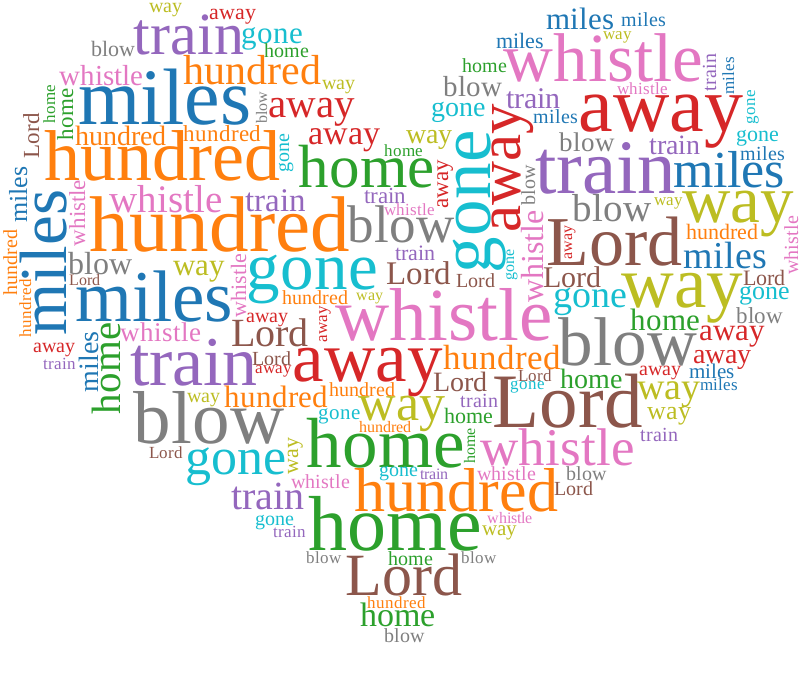
Commencez par un rapport, une mairie ou un nuage de mots rétrospectif dans un format prêt à glisser.
Changez la langue, la palette de couleurs et la disposition des mots pendant que l'aperçu se met automatiquement à jour.
Ajoutez votre propre texte et affinez les formes, les polices et les paramètres d'exportation sur la page d'accueil.
Faites ressortir les thèmes derrière les KPI, les risques et les priorités du prochain trimestre.
Transformez les réponses aux sondages, les questions-réponses et les notes d'atelier en une diapositive de discussion.
Facilitez l’analyse des obstacles, des résultats, des décisions et des actions de suivi.
Idéal pour un placement rapide sur un arrière-plan de diapositive existant. Il garde la diapositive environnante visible.
Idéal lorsque vous avez besoin d'une mise à l'échelle nette ou que vous souhaitez recolorer et ajuster le graphique après l'avoir inséré.
Téléchargez PNG ou SVG, puis utilisez Insertion > Images dans PowerPoint. Vous pouvez également utiliser Copier l'image dans les navigateurs pris en charge et la coller directement sur la diapositive.
Utilisez le PNG transparent pour un flux de travail plus rapide. Utilisez SVG lorsque vous avez besoin d'une netteté vectorielle, d'une sortie grand format ou d'un contrôle d'édition accru.
Oui. Ouvrez l'éditeur complet et collez-y les réponses. Les termes répétés reçoivent plus de poids visuel, ce qui facilite la présentation des thèmes communs.
L'éditeur complet crée des graphiques PNG et SVG prêts à être glissés. Insérez le graphique téléchargé dans votre présentation PowerPoint existante.
Microsoft PowerPoint est une marque commerciale du groupe de sociétés Microsoft. Wordcloud.art n'est ni affilié ni approuvé par Microsoft.