
경영진 요약
KPI, 위험, 다음 분기 우선순위의 주제를 파악하세요.
프리젠테이션 도구
슬라이드용 예제로 시작한 다음 언어, 템플릿, 슬라이드 크기, 배경, 색 구성표 및 단어 레이아웃을 조정하세요. 모든 변경 사항은 실제 미리보기를 자동으로 업데이트합니다.
AI 크리에이티브 디렉터
| 검색 | 빈도 | 색상 |
|---|
모션을 설정하고 SVG, GIF, MP4로 내보낼 수 있습니다.
Leave empty to animate all words. When target words are specified, only matching words will be animated.
Animation settings will be applied to downloaded GIF and animated SVG formats. Select the corresponding format in the download dialog to use these settings.
Click "Template" in the left sidebar, enter the template selection area, you can select templates by category or search templates using keywords. Currently includes Classic templates and 3D templates.
In the template category, select the "Geometry" category to see shape templates such as circles, pentagons, rectangles, triangles, etc.
Click "Settings" in the left sidebar, enter the settings area, click the "Select Font" dropdown to choose a font according to your preference.
Click "Settings" in the left sidebar, enter the settings area, check "Allow Duplicates".
Click "Settings" in the left sidebar, enter the settings area, adjust the maximum value in the "Max Words" input box. Usually 150~200 words work best.
Click "Settings" in the left sidebar, enter the settings area, you can use the built-in color schemes. Includes 4-color, 6-color, 8-color, 10-color schemes. After selection, you can choose the corresponding color scheme.
Click "Settings" in the left sidebar, enter the settings area, click the plus sign below Custom to add colors as needed.
Fill template means filling words inside the template area. Click "Settings" in the left sidebar, enter the settings area, find Render Mode, and select Fill Template.
Surround template means placing words around the outside of the template to highlight the template theme area. Click "Settings" in the left sidebar, enter the settings area, find Render Mode, and select Surround Template.
Click "Settings" in the left sidebar, enter the settings area, click Size, and select the size as needed.
Click the down arrow in the right edit area to pop up download options, you can set the download format as needed.
In the right edit area, click the down arrow, in the download popup, select PNG format and transparent background, then click download.
In the right edit area, click the down arrow, in the download popup, select SVG to download.
In the right edit area, click the down arrow, in the download popup, select PNG to download.
In the right edit area, click the down arrow, in the download popup, select JPG to download.
In the right edit area, click the brush to enter edit mode. Move to the image area, select a word, a color picker will pop up, you can modify the word color as needed.
In the right edit area, click the brush to enter edit mode. Move to the image area, select a word, you can drag to adjust the word size.
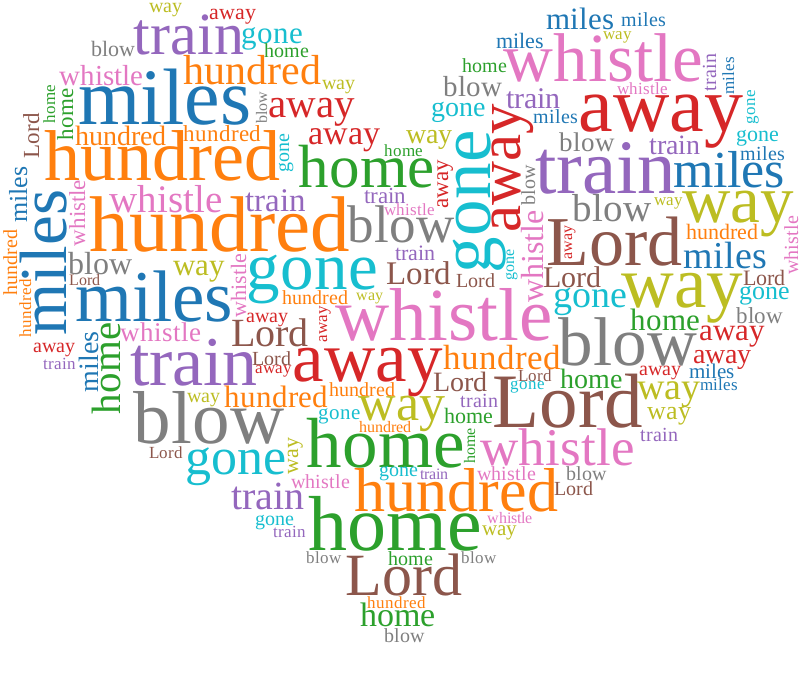
슬라이드 가능한 비율로 보고서, 시청 또는 회고적 단어 구름으로 시작하세요.
미리보기가 자동으로 업데이트되는 동안 언어, 색 구성표, 단어 레이아웃을 전환하세요.
홈페이지에서 자신만의 텍스트를 추가하고 모양, 글꼴, 내보내기 설정을 미세 조정하세요.
KPI, 위험, 다음 분기 우선순위의 주제를 파악하세요.
설문조사 답변, Q&A, 워크숍 메모를 토론 슬라이드로 전환하세요.
방해 요소, 결과, 결정 및 후속 조치를 쉽게 검색할 수 있도록 만드세요.
기존 슬라이드 배경에 빠르게 배치하는 데 가장 적합합니다. 주변 슬라이드가 계속 표시됩니다.
선명한 크기 조정이 필요하거나 그래픽을 삽입한 후 색상을 다시 지정하고 조정하려는 경우에 가장 적합합니다.
PNG 또는 SVG를 다운로드한 다음 PowerPoint에서 삽입 > 그림을 사용하세요. 지원되는 브라우저에서 이미지 복사를 사용하여 슬라이드에 직접 붙여넣을 수도 있습니다.
가장 빠른 작업 흐름을 위해 투명 PNG를 사용하세요. 벡터 선명도, 대형 출력 또는 추가 편집 제어가 필요한 경우 SVG를 사용하십시오.
예. 전체 편집기를 열고 거기에 응답을 붙여넣으세요. 반복되는 용어는 시각적으로 더 큰 비중을 차지하므로 공통 주제를 더 쉽게 표현할 수 있습니다.
전체 편집기는 슬라이드용 PNG 및 SVG 그래픽을 생성합니다. 다운로드한 그래픽을 기존 PowerPoint 데크에 삽입합니다.
Microsoft PowerPoint는 Microsoft 그룹 계열사의 상표입니다. Wordcloud.art는 Microsoft와 제휴하지 않거나 Microsoft에서 보증하지 않습니다.