Presentation Word Cloud Examples: Opening Slides, Recaps, and Reports
Why Use a Word Cloud in a Presentation?
A presentation word cloud gives an audience a fast visual summary. It can open a talk, recap survey responses, summarize a workshop, show customer language, or make a report slide less text-heavy.
The best presentation word clouds are simple, readable, and connected to the slide story. Do not pack every word into one visual. Pick the words that support the point of the slide.
Example: Opening slide for a team workshop
Prompt: "What should our team focus on this quarter?"
Responses: customer experience, speed, quality, roadmap, focus, reliability, teamwork, automation, onboarding, customer experience, reliability.
Cleaned keyword list: customer experience 2, reliability 2, speed 1, quality 1, roadmap 1, focus 1, teamwork 1, automation 1, onboarding 1.
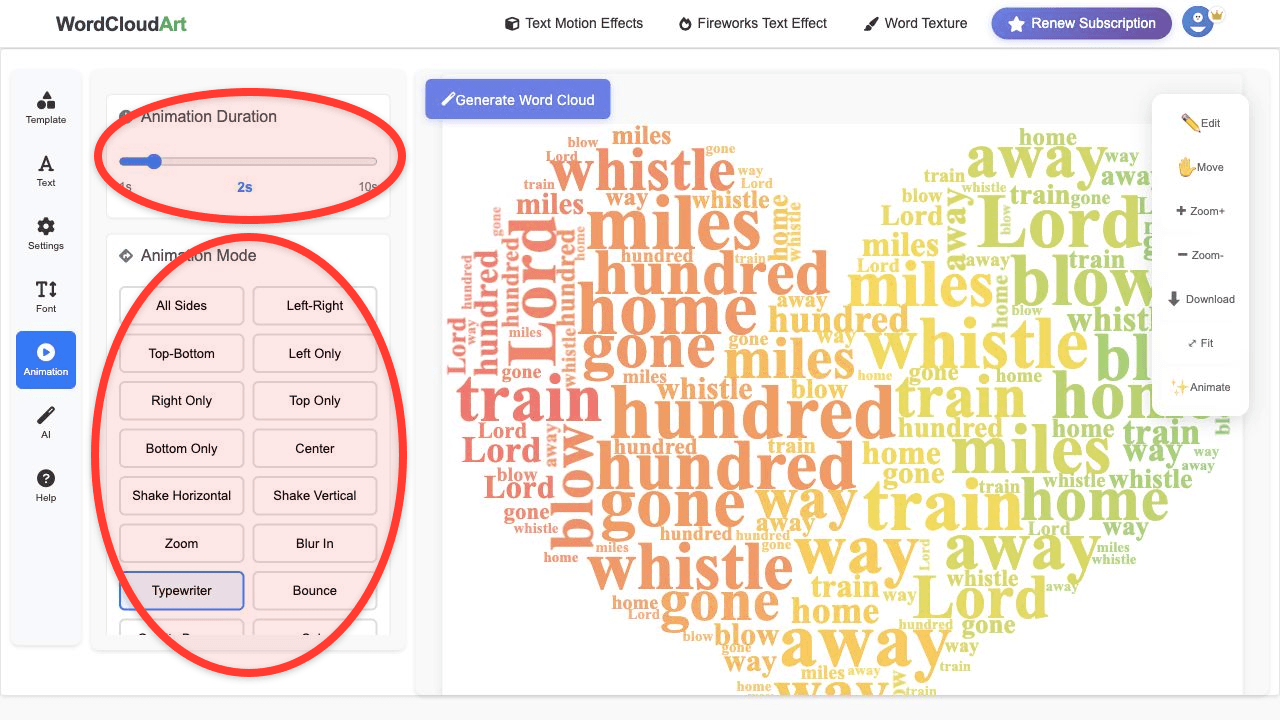
Recommended output: PNG for a static opening slide or MP4 if you want the words to animate as people enter the room.
Presentation Word Cloud Examples
| Slide type | Example content | Best format |
|---|---|---|
| Opening slide | Audience expectations, workshop themes, class mood | MP4 or PNG |
| Survey recap | Top feedback words from open-ended responses | PNG or SVG |
| Customer insights | Support themes, product requests, review language | SVG or PNG |
| Event screen | Hashtags, audience answers, session keywords | MP4 or GIF |
How to Create a Presentation Word Cloud
- Define the slide purpose. Decide whether the cloud is an opener, summary, evidence slide, or visual break.
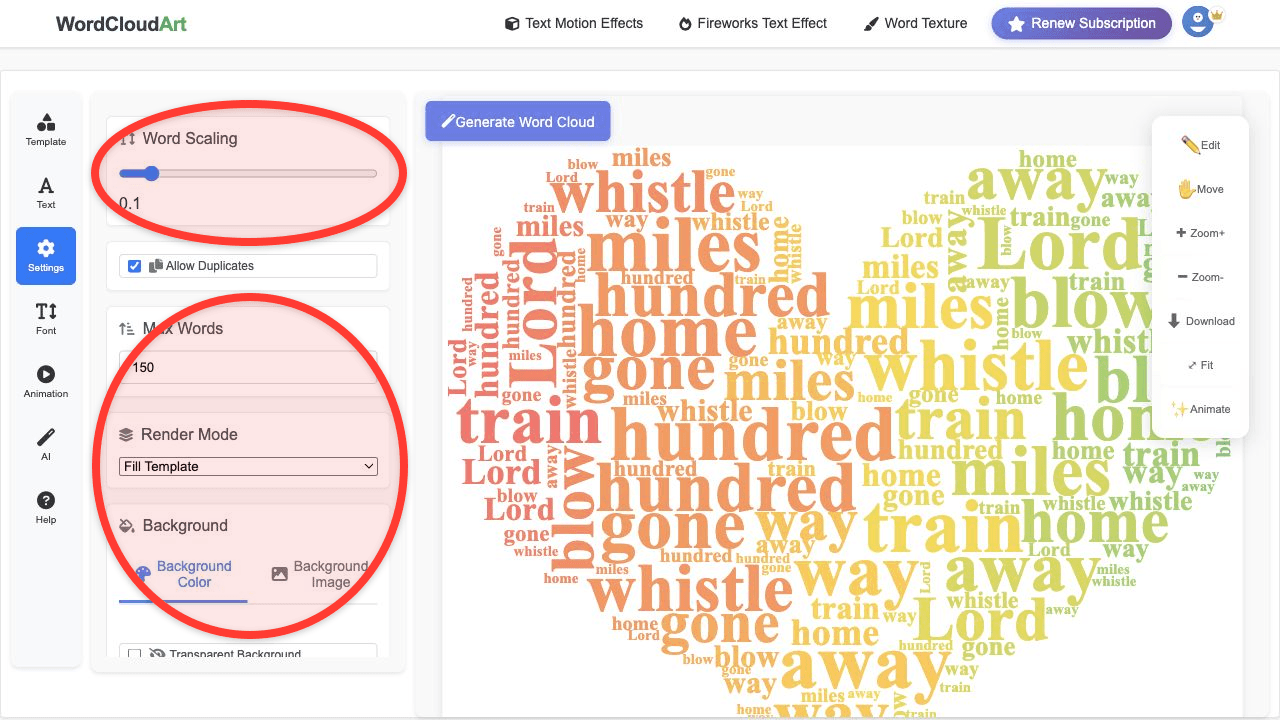
- Use a short keyword list. For slides, 20 to 60 words is usually more readable than 200 words.
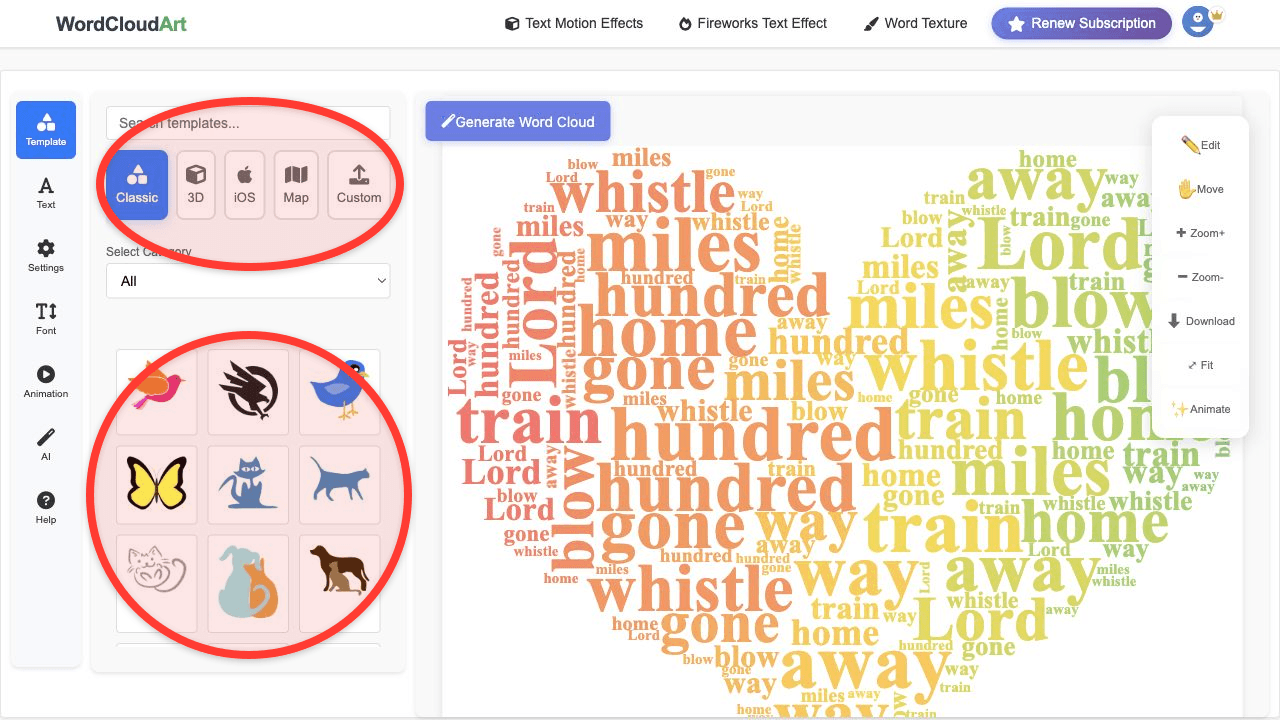
- Choose a shape that supports the story. Use a simple circle for reports, a speech bubble for audience input, or a themed icon for events.
- Keep contrast high. Projectors and meeting screens can wash out low-contrast colors.
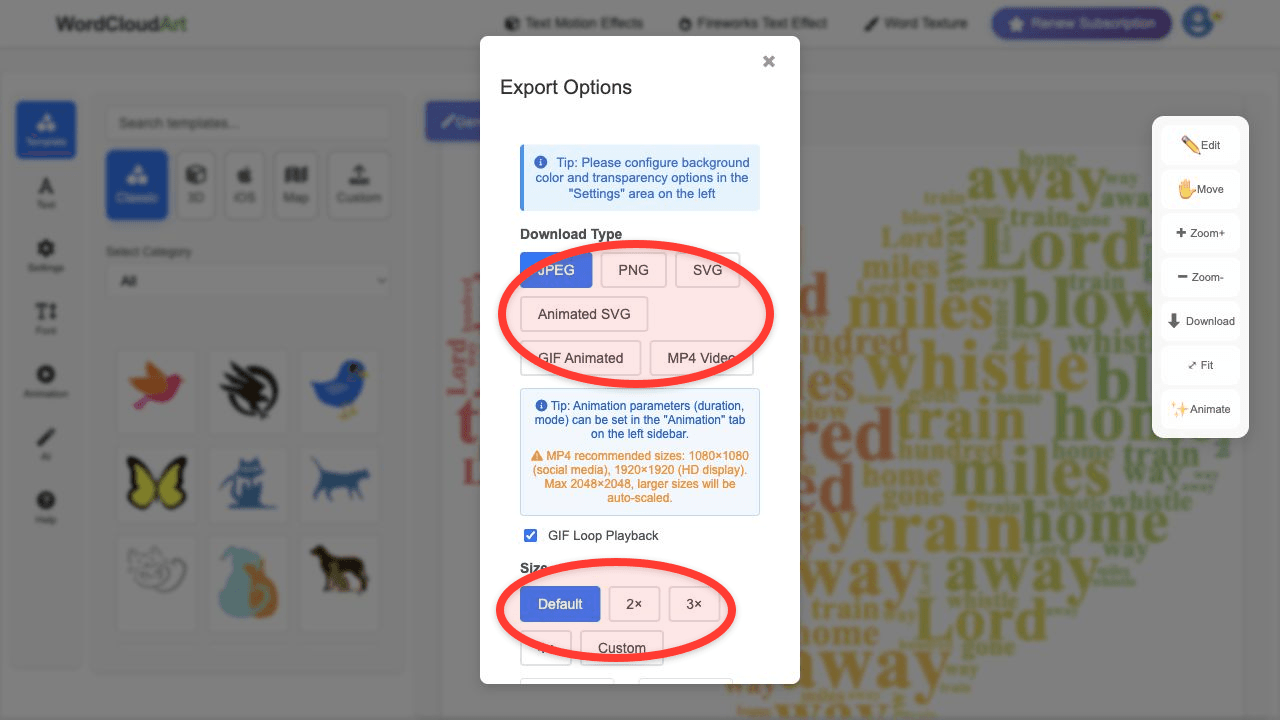
- Export the right format. PNG for static slides, SVG for sharp PDFs, MP4 for animated openers.
Example: Customer insight slide
Slide title: "What customers mentioned most often"
Keywords: customer support 18, easy setup 15, mobile app 12, delivery speed 10, pricing 8, feature request 7, onboarding 6.
Slide note: Use the word cloud as the visual, then add 2 to 3 bullet insights next to it or on the following slide.
Recommended export: SVG for a clean report deck, or PNG if you are pasting directly into PowerPoint.
Common Presentation Mistakes
- Using too many words, making the slide unreadable from the back of the room.
- Using decorative shapes that fight the actual message.
- Putting the word cloud on top of a busy background image.
- Animating every slide. Motion is strongest when used selectively.
- Exporting a low-resolution image for a large screen.
Related Guides
For source data, use survey word cloud examples or customer feedback word clouds. For motion exports, see animated word cloud video.