Frequency scaling, Max Words, and Max Font Size: what does each do?
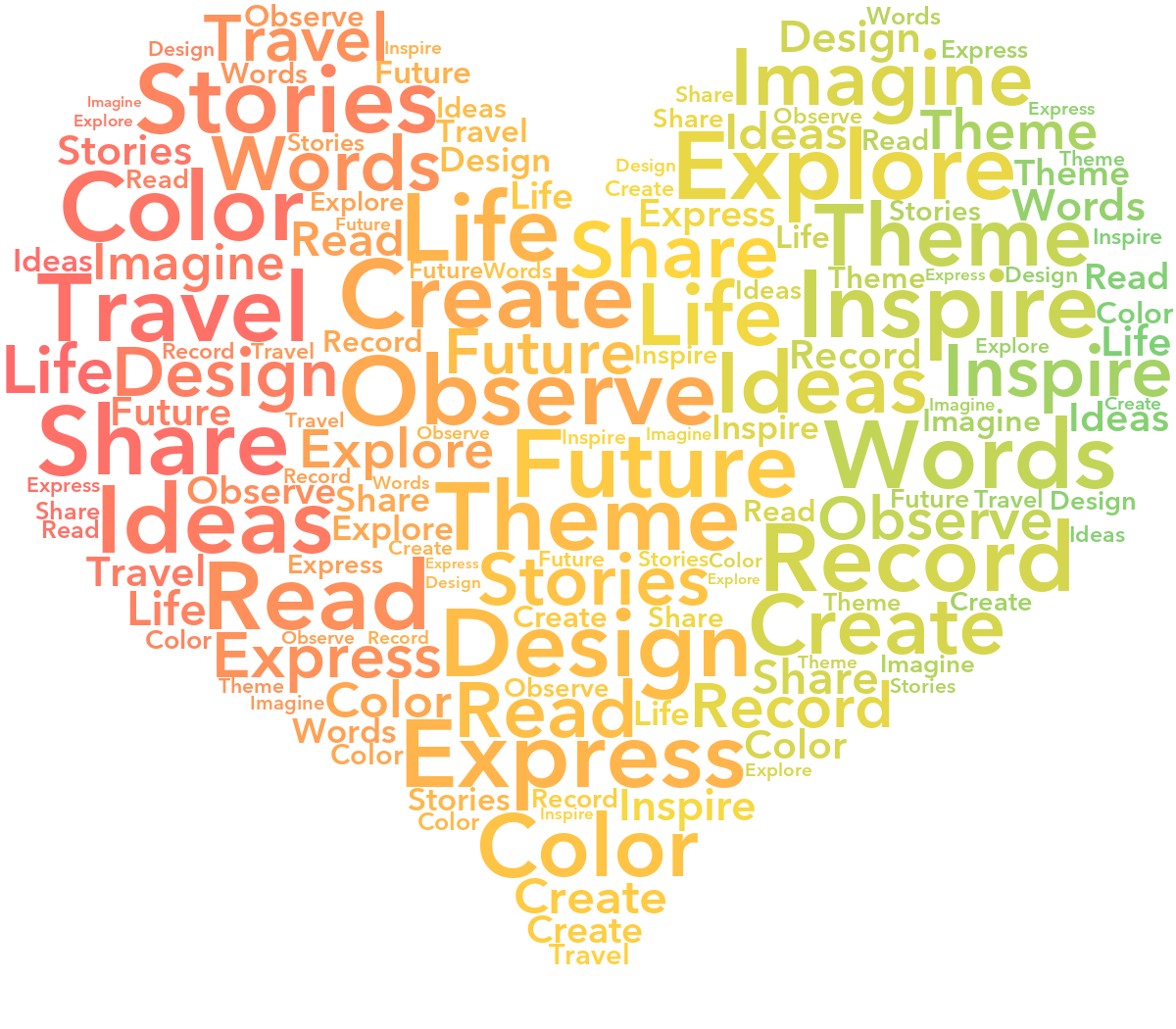
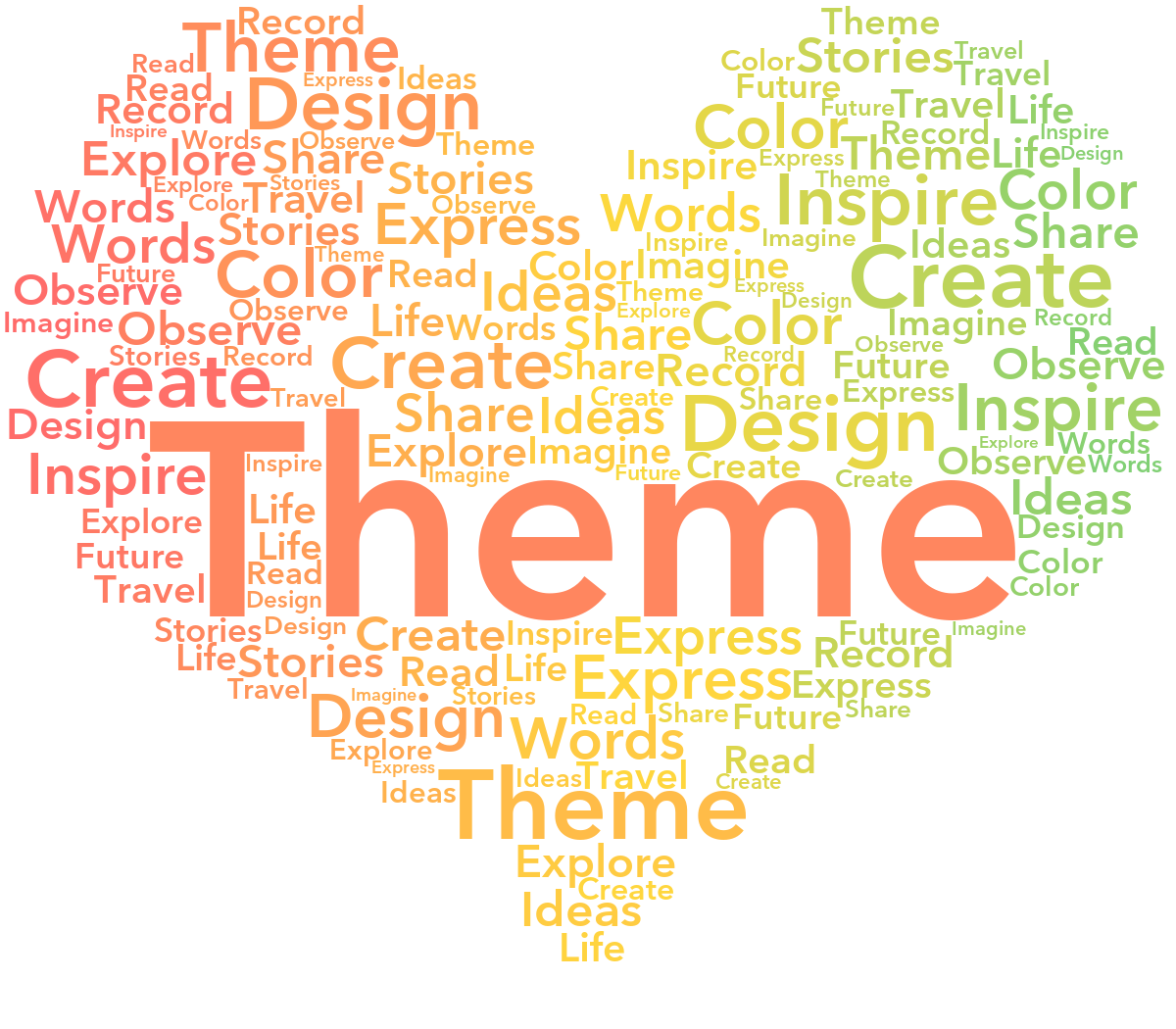
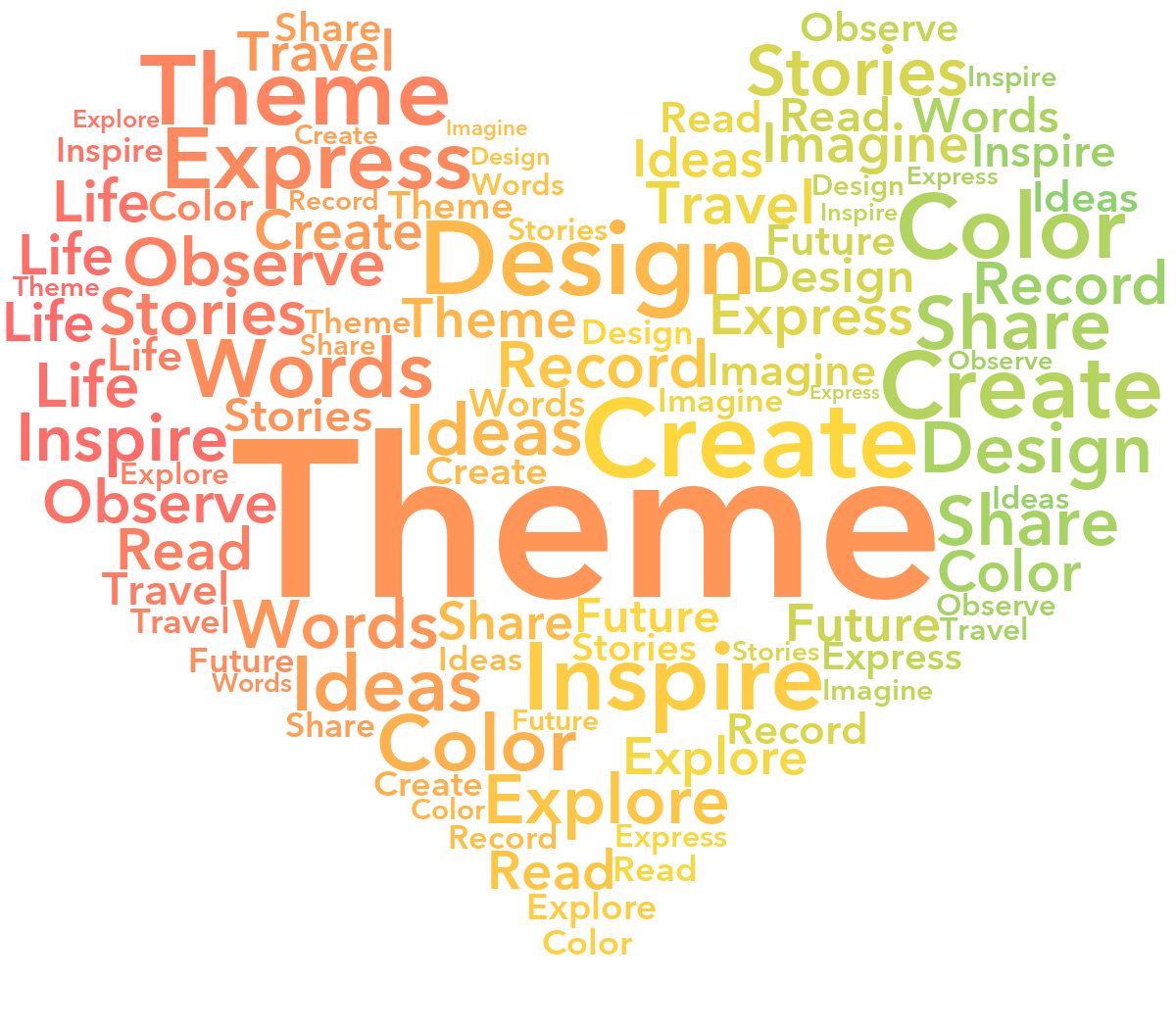
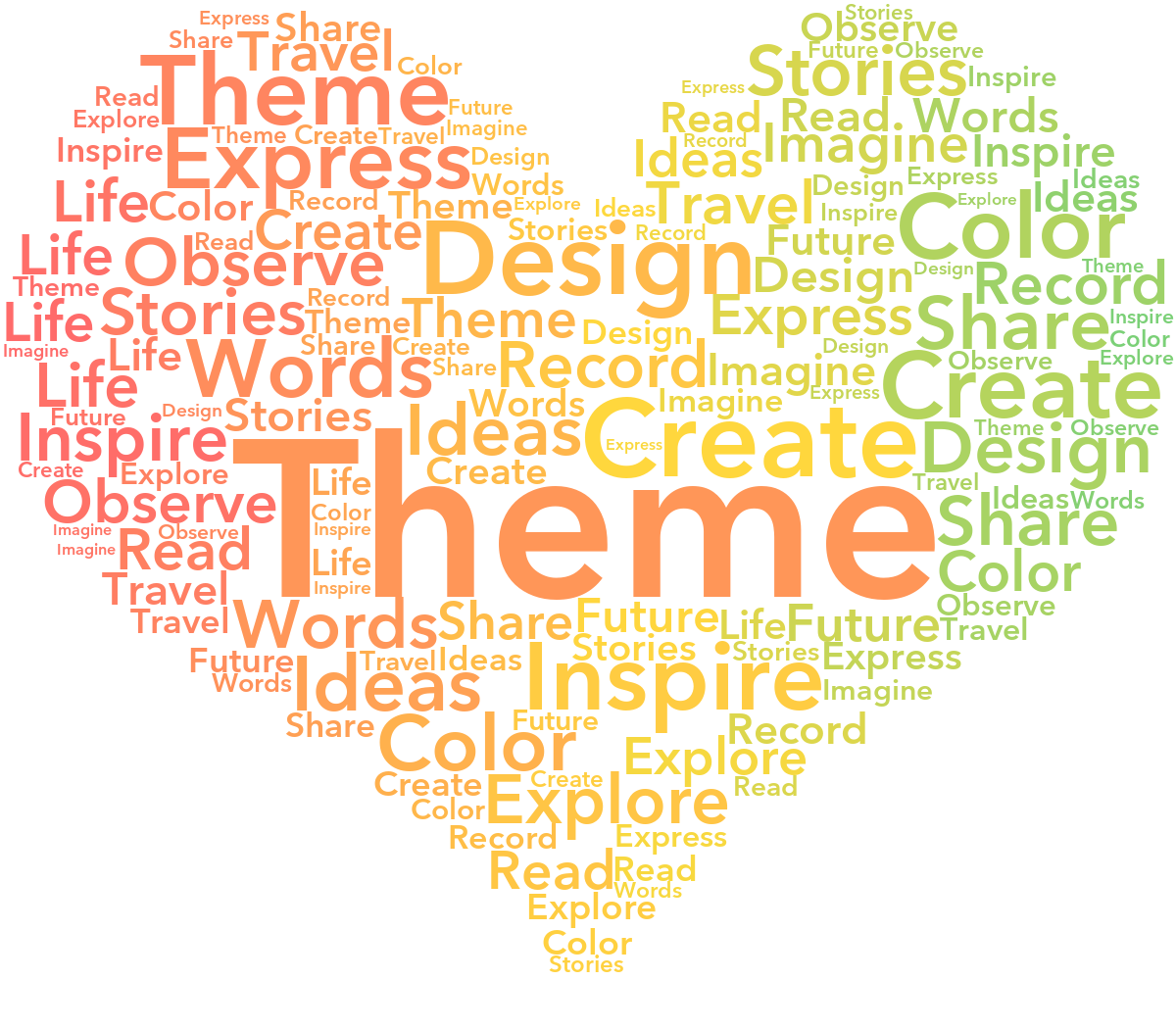
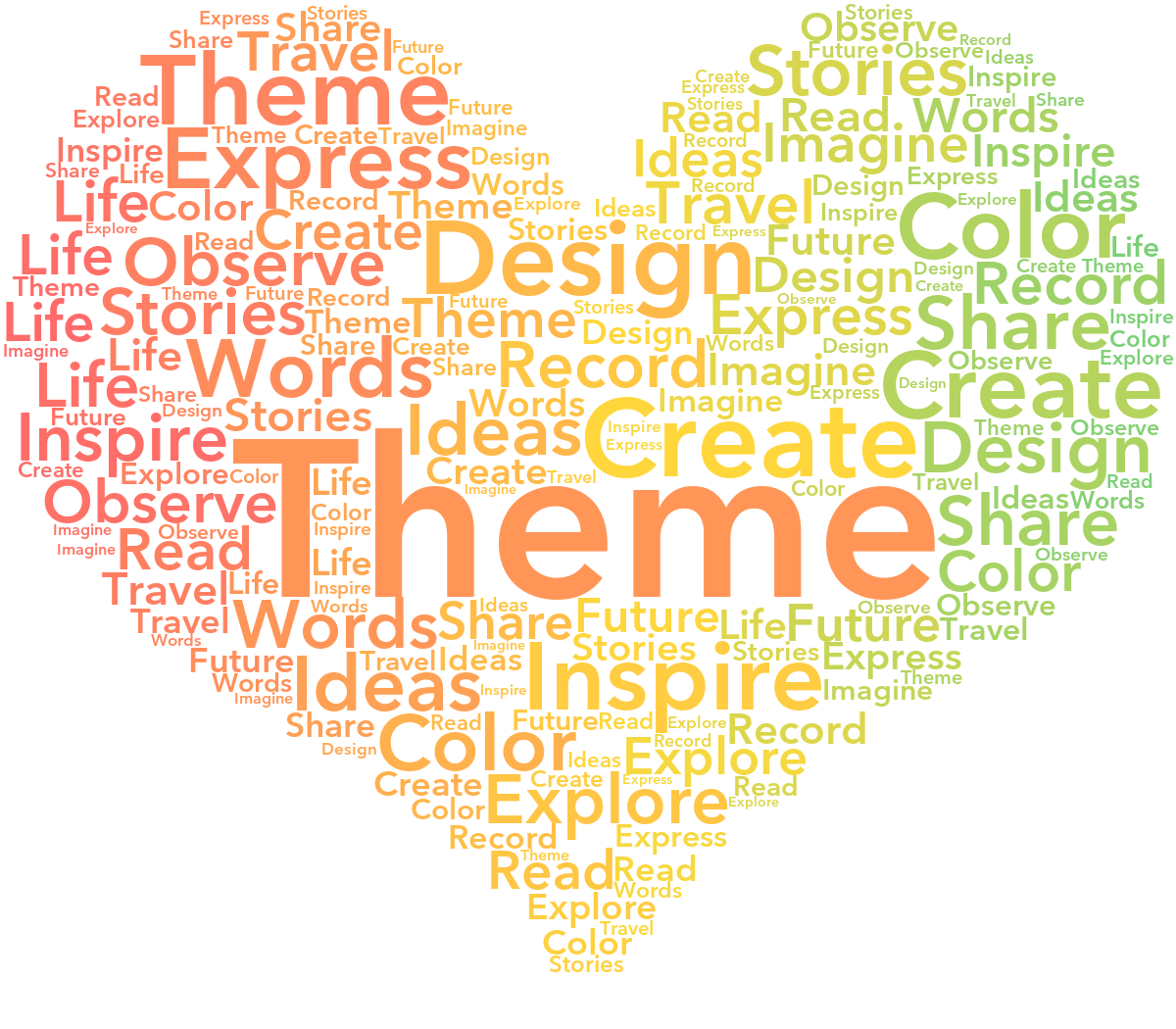
Set the frequency of each word in the Text list first, then use these three settings to shape the result. All seven examples below were generated by this site's word cloud engine with the same 18 English words, a heart template, Allow Duplicates enabled, “Theme” marked as Main, and a left-to-right coral, yellow, and green gradient. Within each comparison, the canvas, word list, and random seed stay fixed; only the named setting changes.
① Change frequency scaling only
“Theme” has a higher frequency than the other words. Both images use Max Words 150 and Max Font Size 300.
② Change Max Words only
These images use frequency scaling 0.6 and Max Font Size 300. The original list has just 18 words, so repeated words can fill additional spaces.
③ Change Max Font Size only
To make the difference clear, “Theme” has frequency 500 while the next word has 38. Both images use frequency scaling 1 and Max Words 300; only Max Font Size changes.
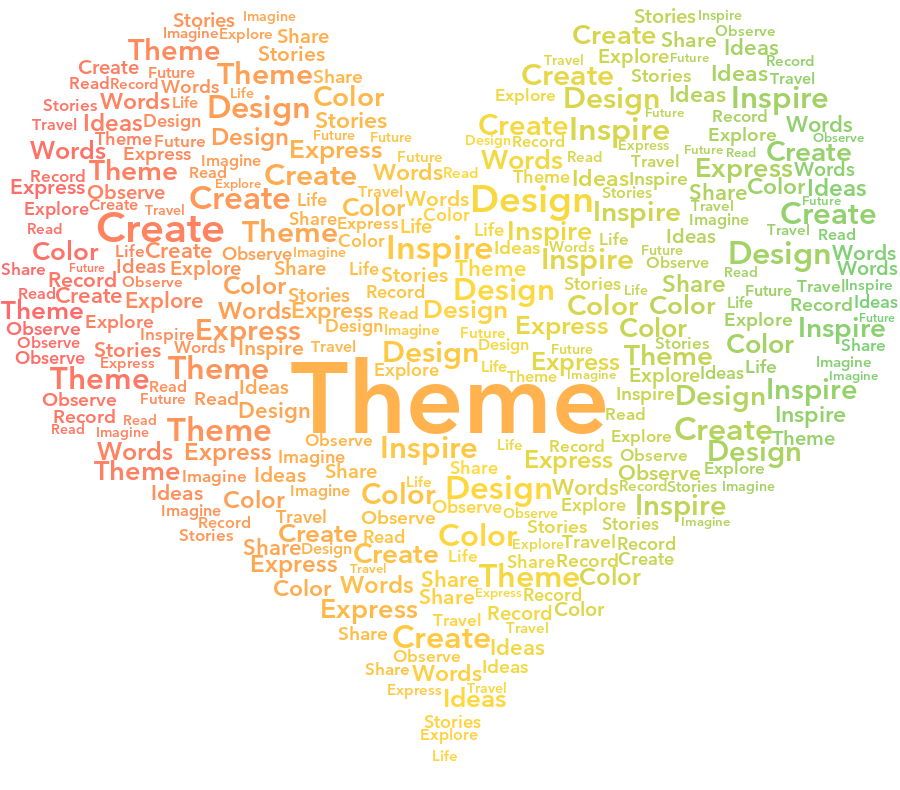
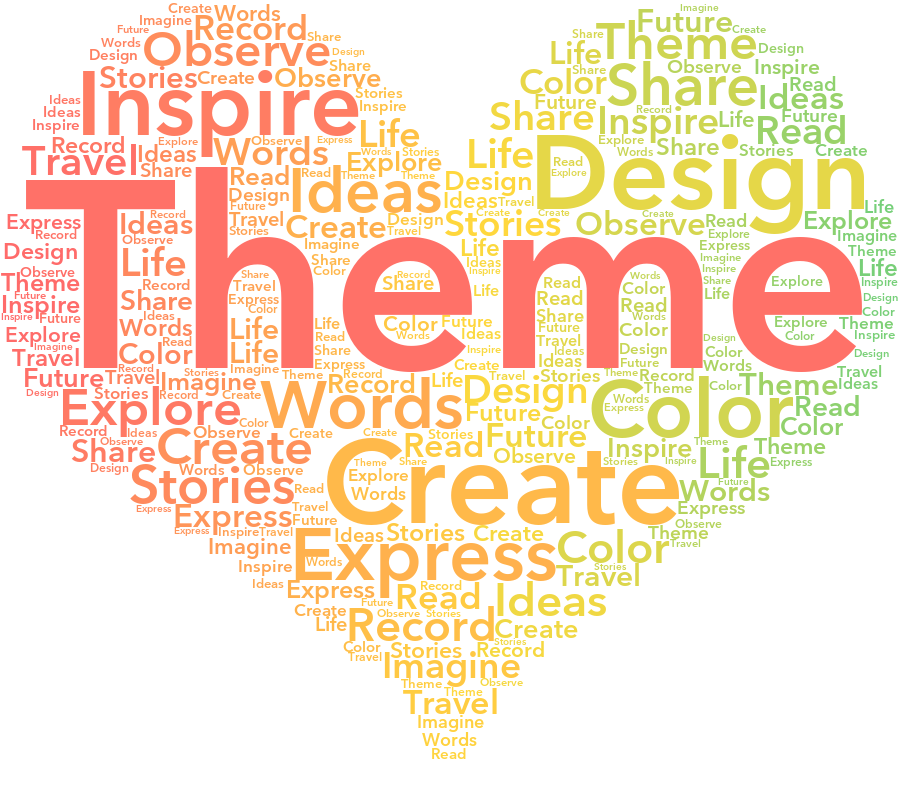
These are real generated results, so changing one setting can also move words as the layout is rebuilt. Results vary with the word list, template, and canvas size.
Want a word near the center? Mark it as Main in the Text list. To make it larger too, increase its frequency relative to the other words. See the steps.