How to Create an AI Word Cloud: A Visual Step-by-Step Guide
What Is an AI Word Cloud?
An AI word cloud is a word cloud created with AI assistance. The words still come from your text or keyword list, but AI can help choose a template direction based on your scenario, topic, tone, and visual goal. That makes the design process faster when you do not know which shape or style to start with.
In Wordcloud.art, the AI workflow lives inside the main editor. You can prepare words, describe the visual scenario, get AI template suggestions, render the cloud, add animation, and export the final result.
Example AI prompt
Scenario: You have customer feedback about a new product launch.
Words: easy setup, customer support, delivery speed, product quality, mobile app, price, packaging, recommendation.
AI prompt: "Business professional, modern, clean, suitable for a product feedback presentation."
Goal: Let AI suggest templates that fit a polished presentation instead of choosing shapes manually.
Step 1: Open the Word Cloud Generator
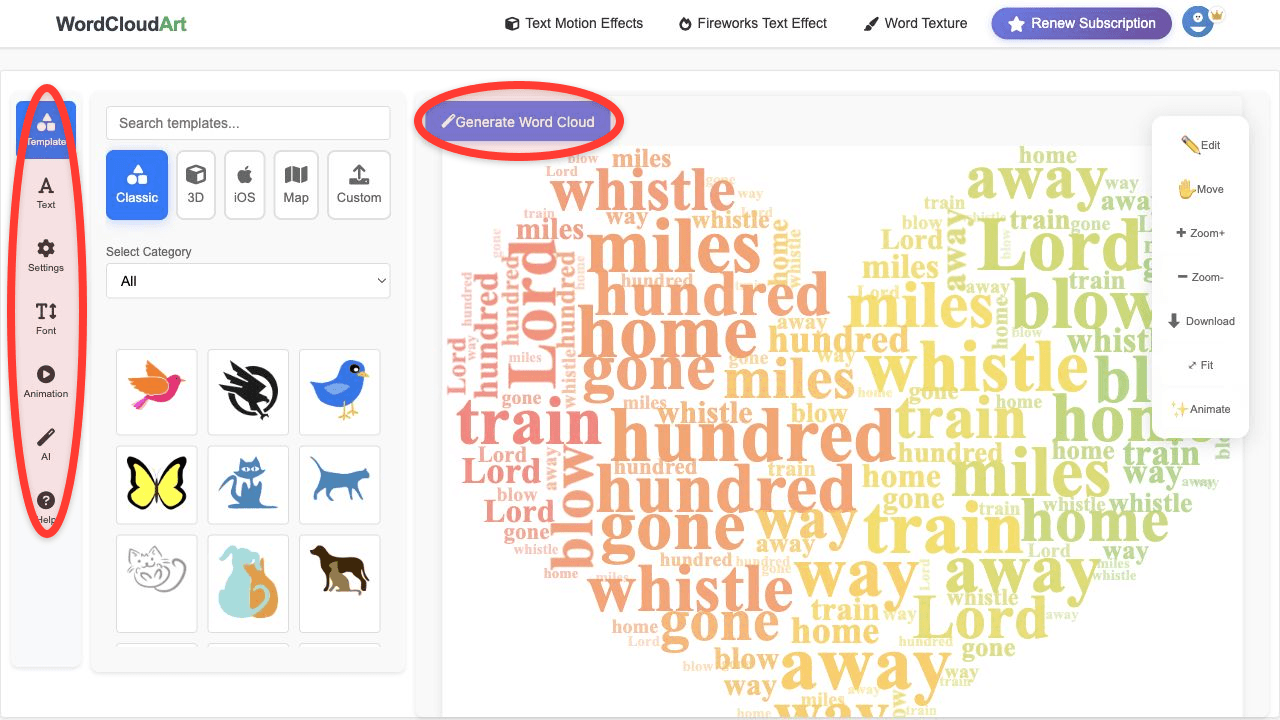
Open Wordcloud.art. The editor is the central workspace for text, templates, settings, fonts, animation, AI suggestions, and downloads.
Step 2: Prepare Your Words First
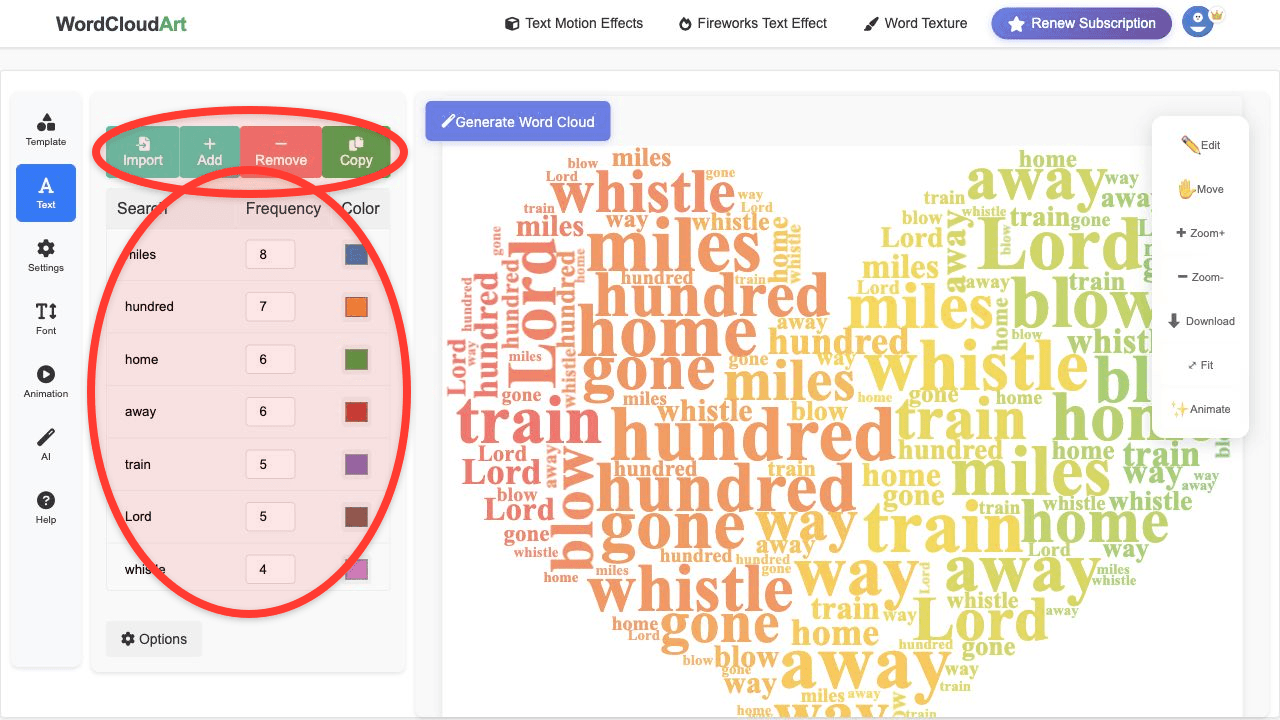
AI suggestions work best when your word list has a clear theme. Open the Text panel, paste your content, remove filler words, and keep important phrases together. For example, keep "customer service" as one phrase instead of splitting it into separate words.
Step 3: Ask AI for Template Suggestions
Open the AI panel. Describe the scene, audience, or style you want. You can write something simple such as "education learning, clear and friendly" or "creative art, colorful and dynamic". AI will suggest templates based on your words and scenario.
Good AI prompts are short but specific:
- For school: "Education learning, friendly, clear, good for classroom vocabulary."
- For business: "Business professional, formal, modern, suitable for a report."
- For social media: "Creative art, colorful, energetic, good for a short animated post."
- For nature: "Natural fresh, green eco, calm and organic."
Step 4: Choose or Refine the Template
After AI gives suggestions, choose the template that best matches your goal. You can still open Template manually and switch to Classic, 3D, iOS, Map, Custom, or Text templates if you want more control.
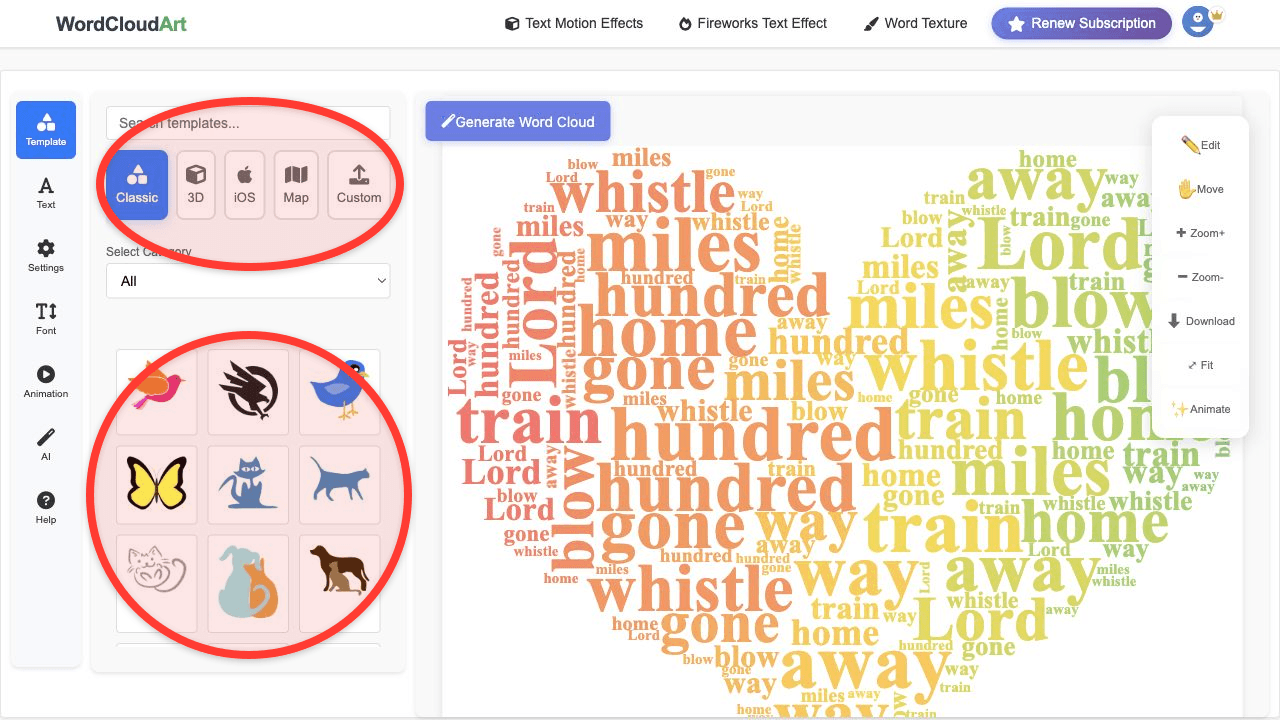
For a deeper look at manual template decisions, see the word cloud generator shapes guide.
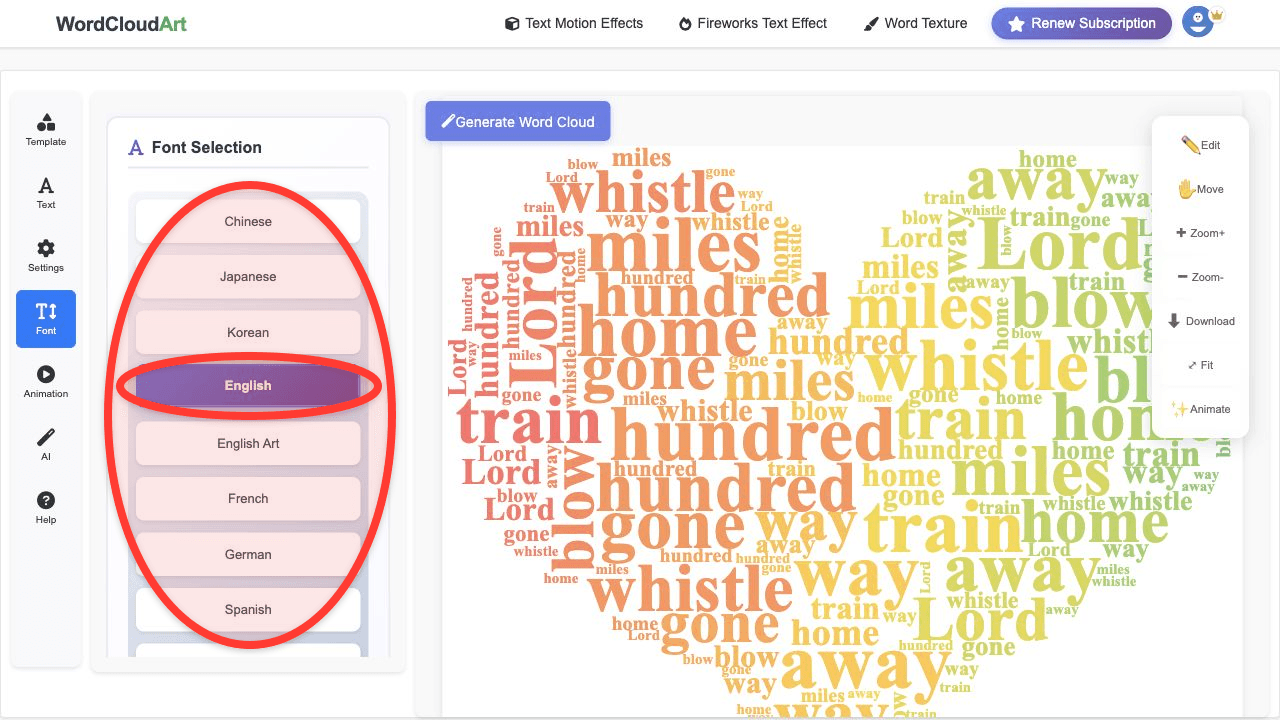
Step 5: Customize Colors, Size, and Fonts
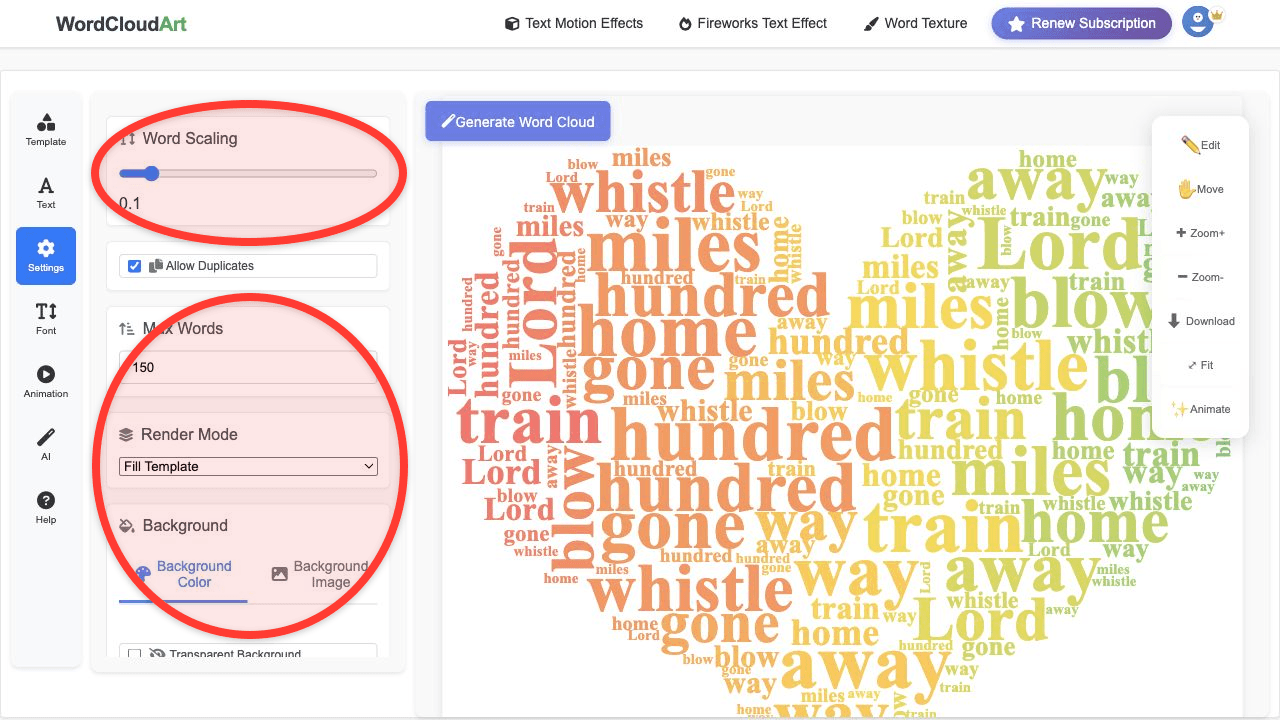
Use Settings and Font to make the AI-assisted cloud fit your final destination. A classroom image can be friendly and readable; a report should be cleaner; a social post can use more expressive fonts and colors.
Step 6: Add Motion if You Need an Animated AI Word Cloud
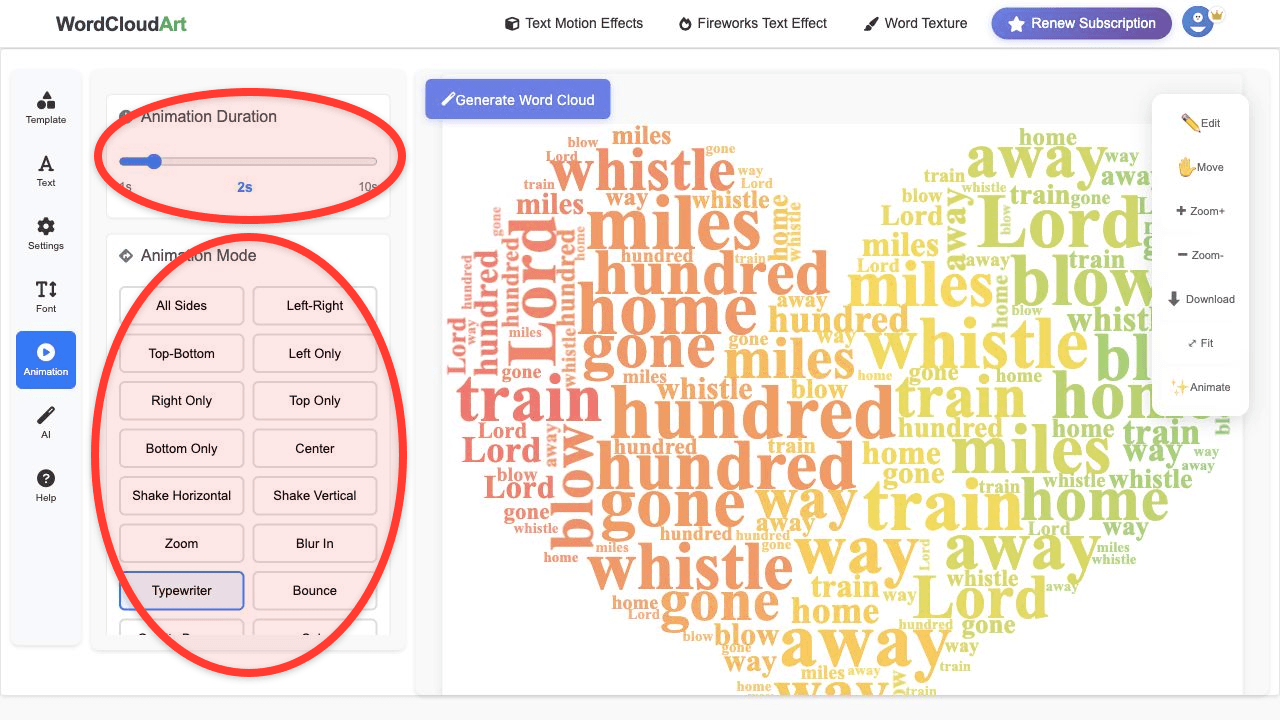
If the cloud will be used in a presentation, event screen, or social video, open Animation. Set the duration, choose a motion mode, and optionally animate selected target words.
For more export-specific details, continue with the animated word cloud video tutorial.
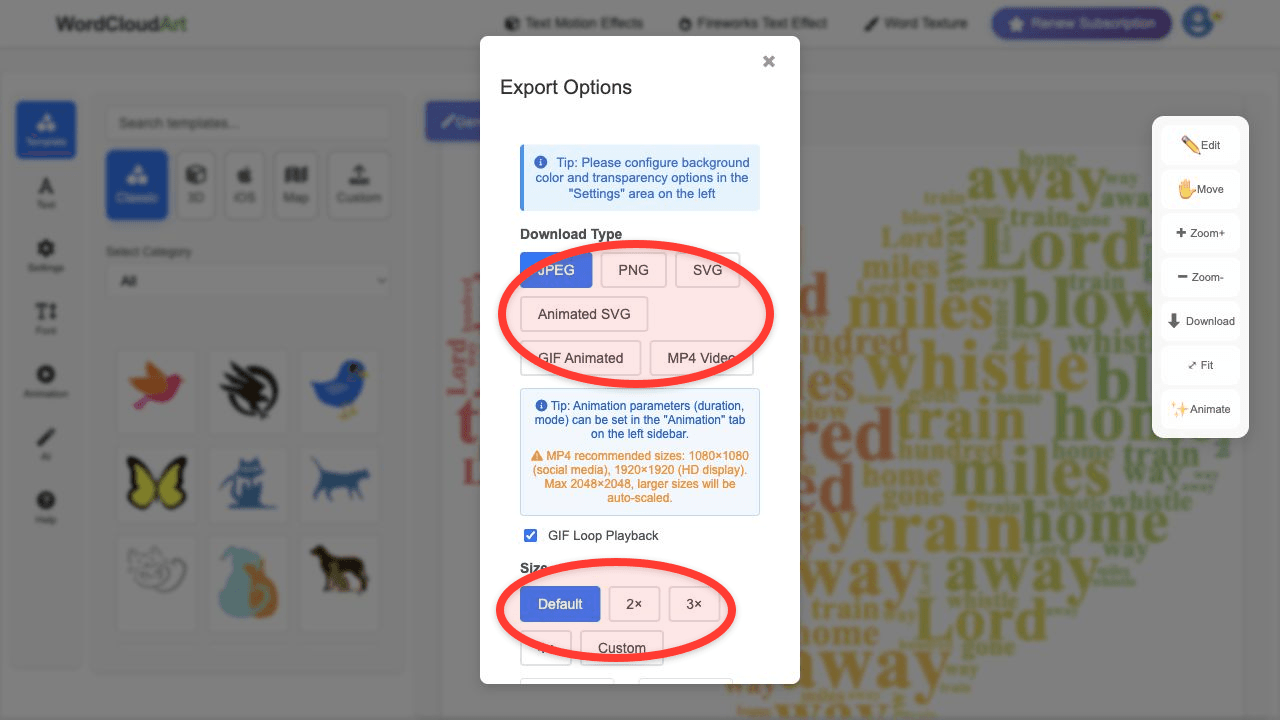
Step 7: Export PNG, SVG, GIF, or MP4
Click Download and choose the format that fits your final use. PNG is good for slides and documents, SVG is good for scalable graphics, GIF is useful for quick loops, and MP4 is best for video platforms and presentations.
AI Word Cloud Prompt Examples
| Goal | Prompt |
|---|---|
| Classroom vocabulary | Education learning, clear, friendly, suitable for students. |
| Business feedback | Business professional, modern, clean, suitable for a report. |
| Social video | Creative art, colorful, dynamic, good for a short animated post. |
| Environmental topic | Natural fresh, green eco, calm, organic, readable. |
FAQ
Does AI write the word cloud text for me?
The strongest workflow is to start with your own text or keywords, then use AI to suggest a visual template direction. This keeps the cloud grounded in your real content.
Can I make an animated AI word cloud?
Yes. After using AI suggestions, open Animation and export the word cloud as Animated SVG, GIF, or MP4.
Can I still choose templates manually?
Yes. AI helps you start faster, but you can still switch templates, fonts, colors, and settings manually.
What makes a good AI word cloud prompt?
Describe the scene, audience, and visual tone. For example: "business professional, clean, suitable for a quarterly report" works better than a vague prompt like "make it nice".