How to Add Background Music to an Animated Word Cloud
To add music, finish your word cloud design, then choose a track in the Animation panel. The selected track is included in an MP4 video. Animated SVG and GIF do not carry audio. The screenshots below show the current editor workflow.
Step 1: Create the cloud and set its motion
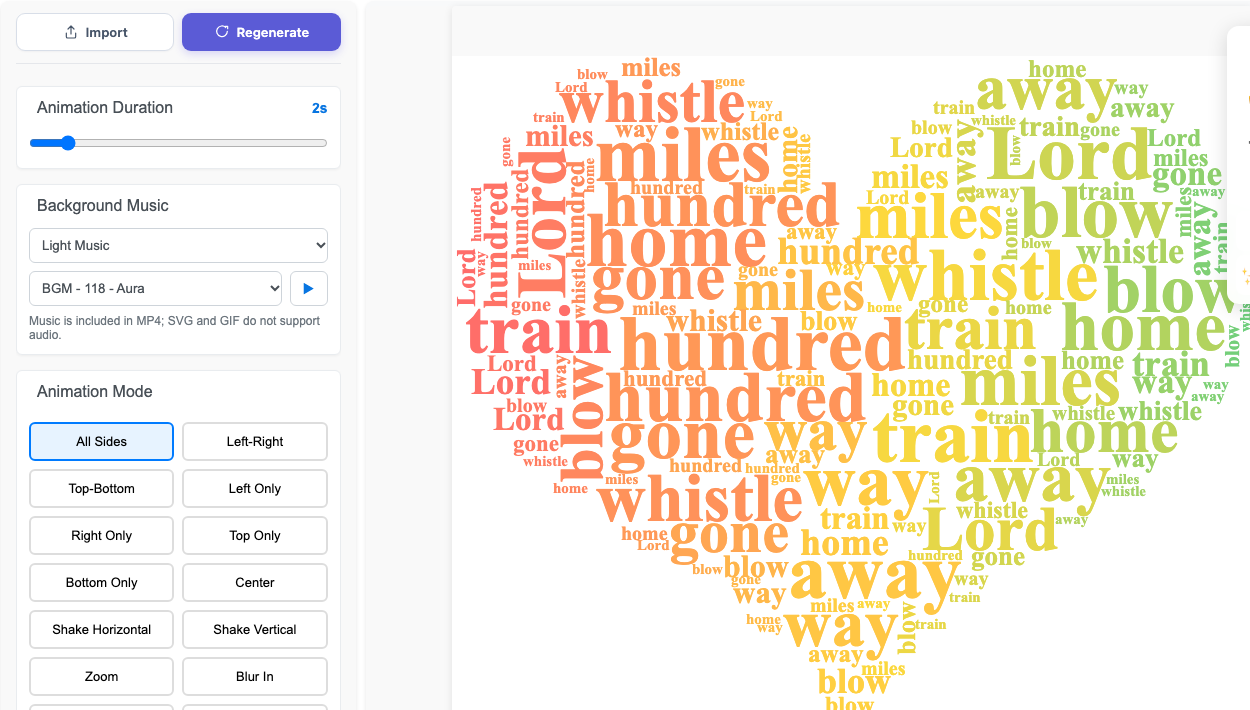
Open the word cloud editor, add your words or choose a template, and generate the cloud. Open Animation in the left sidebar. Set the duration with the slider and choose an animation mode. Start with 2–4 seconds for a short video, then adjust for readability.
Step 2: Choose and preview a track
Use the first Background Music menu to choose a category, such as Light Music, Jazz, Chinese Style, or Natural / Ethereal. The second menu lists its tracks. The built-in library currently offers 12 categories and 240 tracks. Press the play button to preview your choice, or choose No music for a silent video.
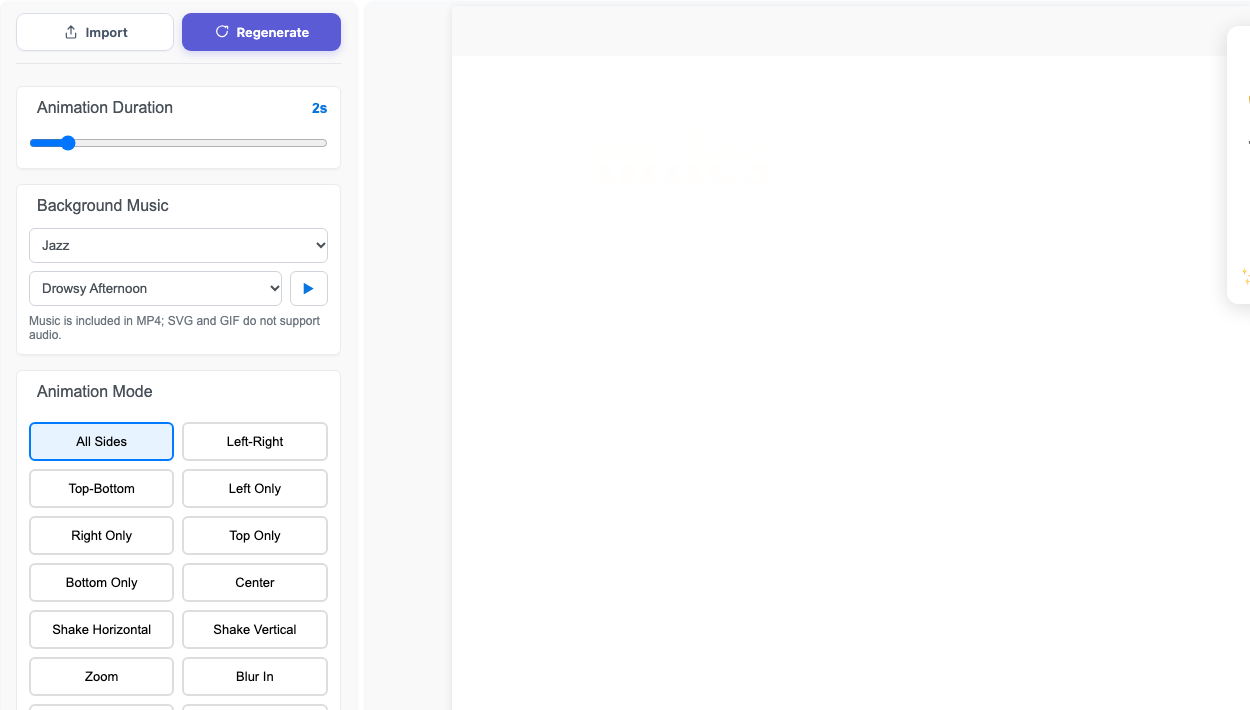
Your choice is saved in this browser. The MP4 export uses the currently selected track.
Step 3: Export an MP4 with audio
Open Download, select MP4 Video, choose a size, then click Download to Local. If the site asks you to sign in or subscribe, follow that prompt before downloading. Return to Animation first if you want to change the timing, motion, or track.
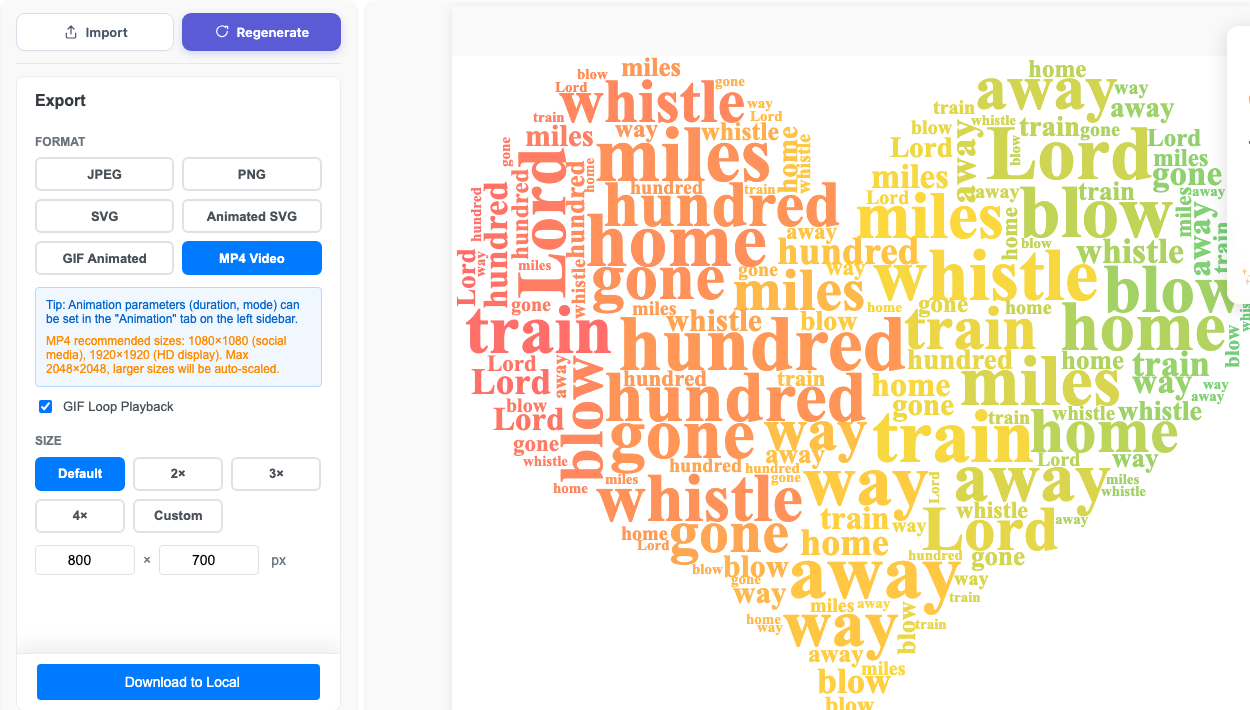
If your browser reports that MP4 audio encoding is unavailable, try an up-to-date Chrome or Edge browser. You can still select No music to export without audio.
Finished result: an animated word cloud with light music
Play the video below and turn on sound to see and hear the finished example.