How to Use a Word Cloud Generator with Google Docs and Google Slides
Does Google Docs or Google Slides Have a Word Cloud Generator?
Google Docs and Google Slides are excellent places to present a finished word cloud, but they are not dedicated tools for designing shaped, weighted, or animated word clouds. The easier workflow is to generate the visual in Wordcloud.art and insert it into your Google file.
Classroom example using Google tools
Scenario: Students answer a prompt in Google Docs or Google Forms: "What words describe a strong community?"
Collected words: trust, kindness, safety, teamwork, listening, respect, empathy, support, belonging, honesty, friendship.
Workflow: copy the responses, paste them into Wordcloud.art, choose a heart or speech bubble template, export PNG, then insert it into Google Slides.
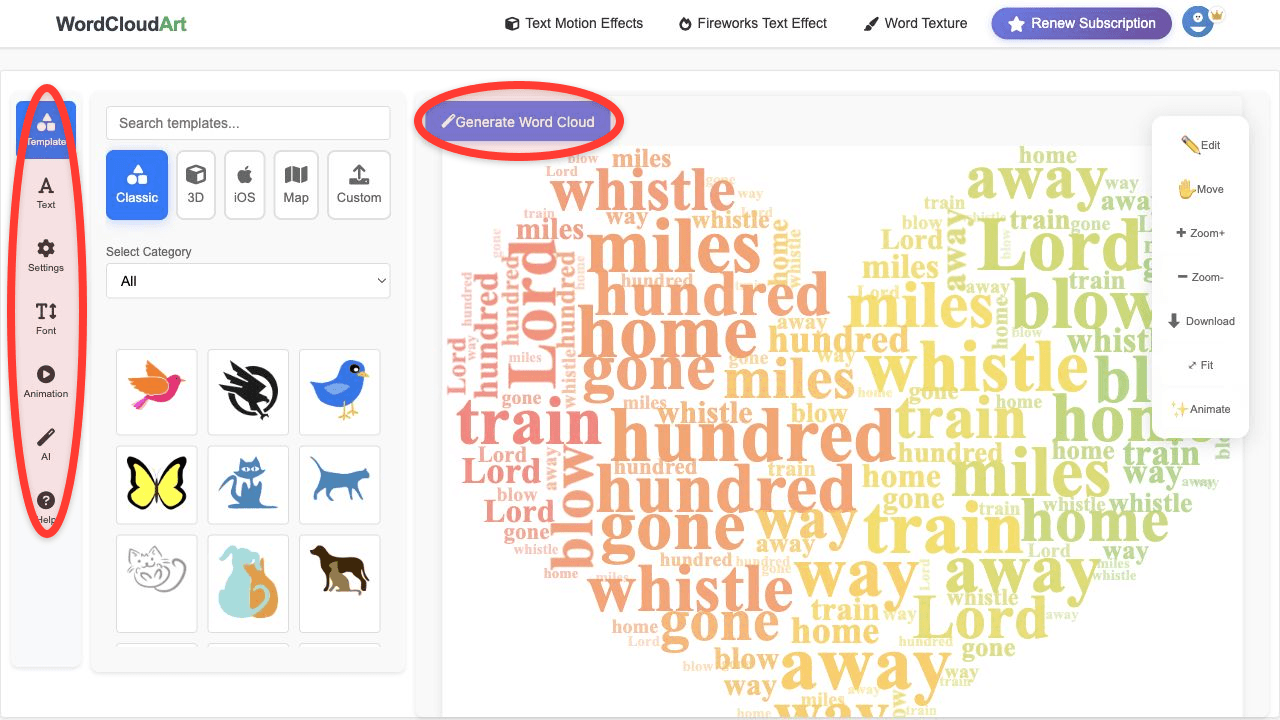
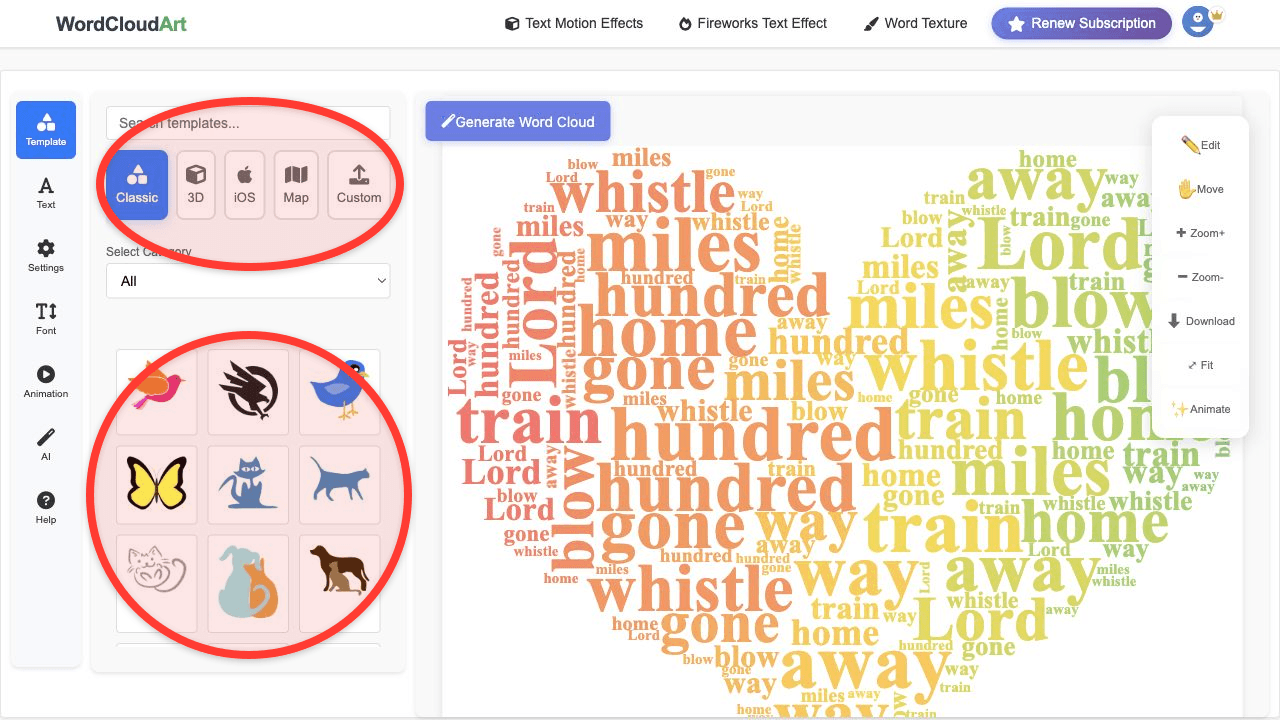
Use Wordcloud.art with Google Docs
- Paste your source text into Wordcloud.art.
- Clean the keyword list and choose a shape.
- Export the result as an image.
- In Google Docs, choose Insert > Image and upload the exported file.
Use Wordcloud.art with Google Slides
- Create the word cloud online.
- Use a horizontal layout if it will sit on a widescreen slide.
- Export PNG for a static slide or video for an animated slide.
- Insert the file into Google Slides and resize it to fit the slide.
Classroom Ideas
- Collect student answers in a Google Form, then create a class word cloud.
- Paste a reading passage into Wordcloud.art and use the cloud as a pre-reading activity.
- Create a slide summary after a group brainstorm.
- Use one word cloud before a lesson and another after the lesson to show how students' vocabulary changed.
FAQ
How do I use a word cloud generator in Google Docs?
Create the word cloud online, download it as an image, then insert it into Google Docs.
How do I use a word cloud generator in Google Slides?
Generate and export the cloud, then insert it into the slide as an image or video.
Does Google Chrome have a word cloud generator?
Chrome is the browser you can use to open an online generator such as Wordcloud.art. The generator runs in the browser.