How to Make an Animated Word Cloud Video and Download Animated SVG
What Is an Animated Word Cloud Video?
An animated word cloud video turns a static keyword layout into motion. Words can move from different directions, bounce, blur in, type in, zoom, or animate across the canvas. This makes the word cloud more useful for presentations, social videos, classroom screens, event loops, and marketing visuals.
In Wordcloud.art, you can create a normal word cloud first, then open the Animation panel to choose motion settings. When the design is ready, use Download to export an Animated SVG, GIF Animated, or MP4 Video.
Example animated video project
Goal: Create a short animated word cloud intro for a product feedback presentation.
Words: customer service, product quality, delivery speed, price, mobile app, support, refund, packaging, recommendation, trust.
Animation mode: Typewriter, Bounce, Zoom, or Left-Right.
Best export: MP4 for video platforms, GIF for lightweight loops, Animated SVG for web pages and scalable motion graphics.
Step 1: Create the Base Word Cloud
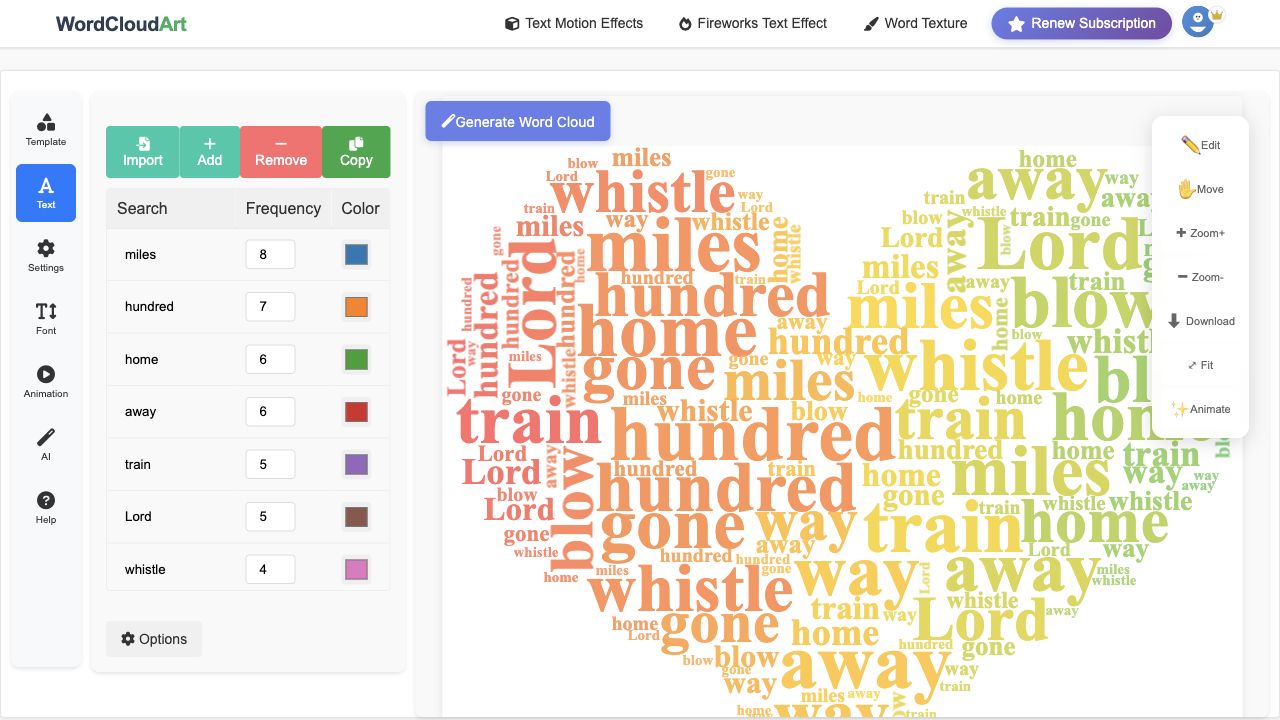
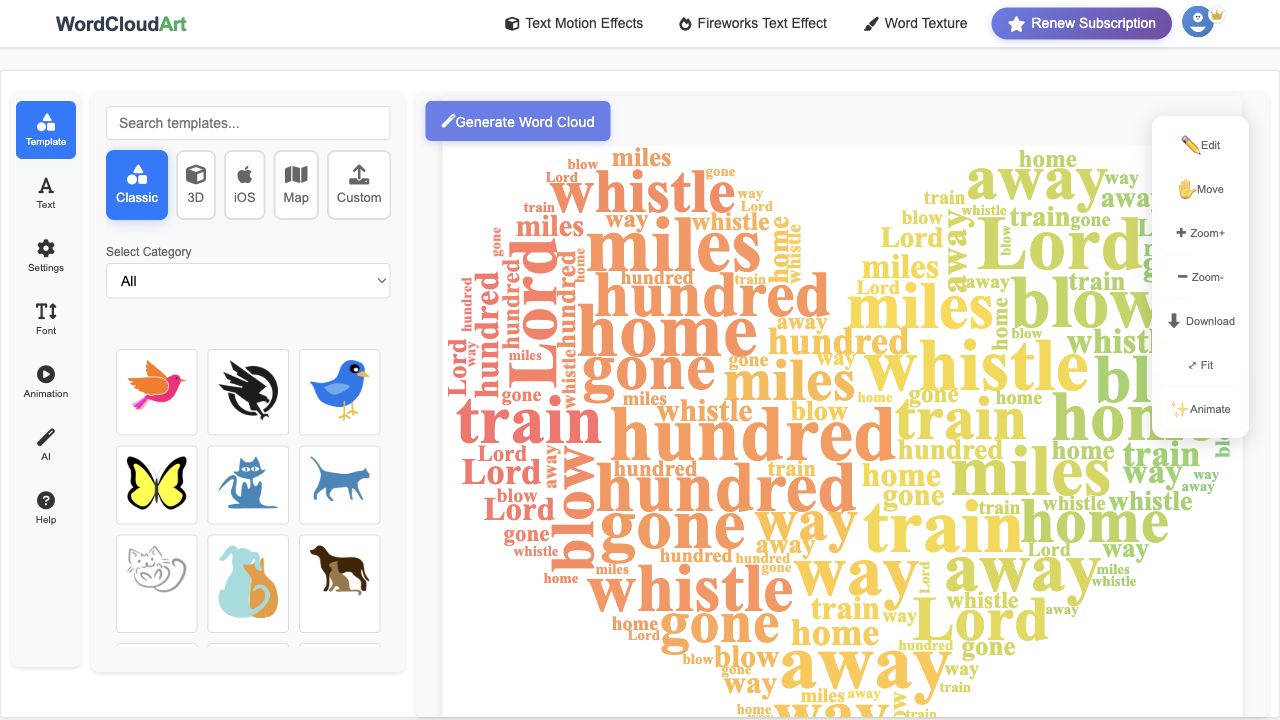
Start by creating a normal word cloud. Paste your words into the Text panel, choose a template, and adjust colors and fonts. If the static cloud is readable, the animated version will usually work well too.
Step 2: Open the Animation Panel
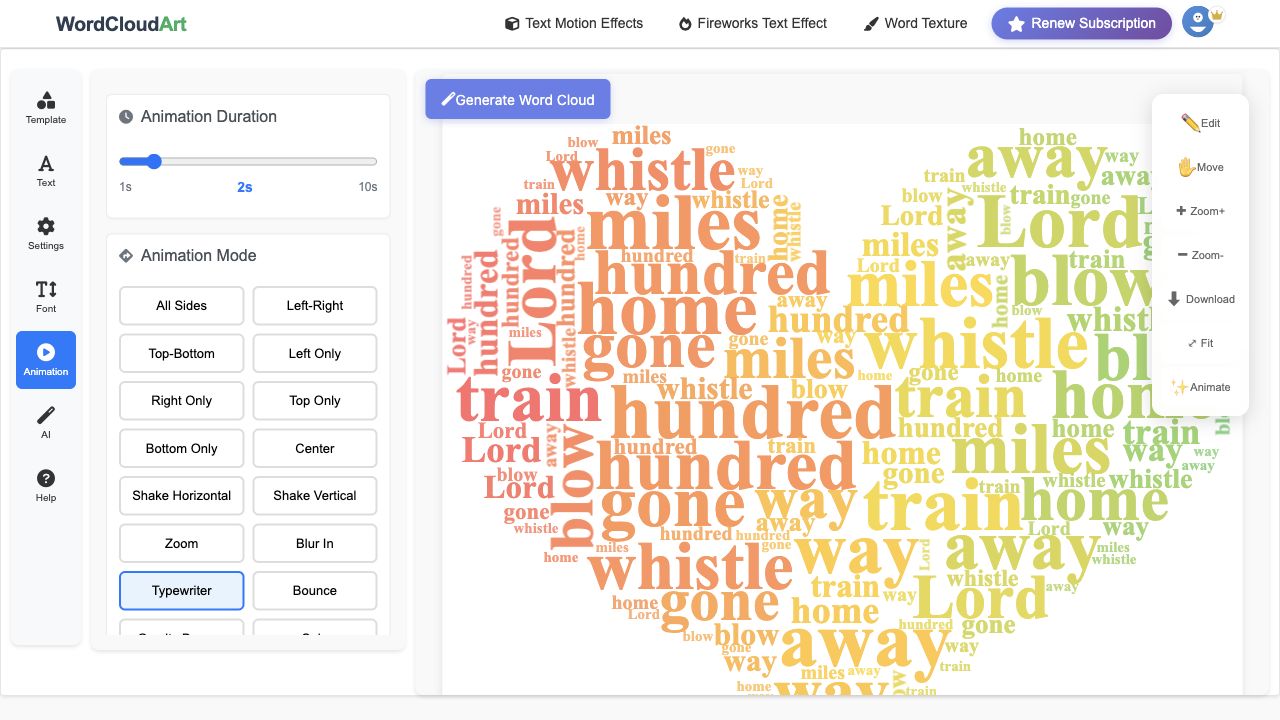
Click Animation in the left sidebar. Use Animation Duration to control how long the motion lasts. Then choose an Animation Mode, such as All Sides, Left-Right, Top-Bottom, Zoom, Blur In, Typewriter, or Bounce.
Step 3: Preview and Tune the Motion
Before downloading, preview the animation in the editor. Keep the motion short enough for the audience to understand the words. For most presentation and social media uses, 2 to 4 seconds works well. Longer durations can feel slow unless the word cloud is being used as a background loop.
- Typewriter: good for tutorials, educational videos, and step-by-step explainers.
- Bounce: good for energetic event visuals and classroom screens.
- Zoom: good for intros, thumbnails, and dramatic transitions.
- Left-Right or Top-Bottom: good for clean presentation motion.
- Blur In: good for softer brand and storytelling videos.
Step 4: Download Animated SVG, GIF, or MP4 Video
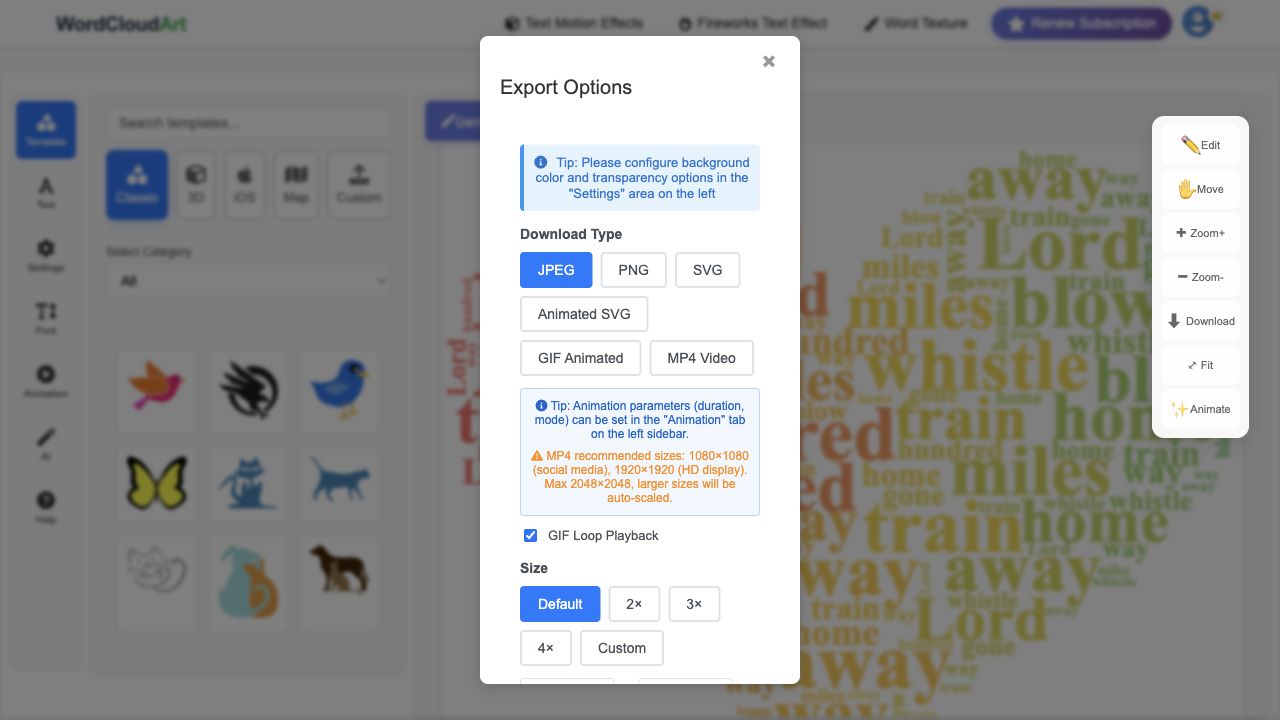
Click Download on the right-side toolbar. In Export Options, choose the format that matches your final use case:
| Format | Best for | Notes |
|---|---|---|
| Animated SVG | Web pages, scalable vector motion, lightweight embeds | Keeps vector sharpness and supports animated word cloud effects. |
| GIF Animated | Simple loops, emails, quick previews, chat sharing | Easy to share, but usually larger and less sharp than SVG or MP4. |
| MP4 Video | YouTube, TikTok, Instagram, presentations, event screens | Recommended for video platforms and PowerPoint or Google Slides video inserts. |
Recommended Settings
- For PowerPoint: export MP4 at 1920x1080 if the slide is widescreen.
- For websites: export Animated SVG when you want crisp scalable motion.
- For social posts: export MP4 for platforms that prefer video uploads.
- For quick sharing: export GIF Animated when compatibility matters more than file size.
- For text-heavy clouds: keep duration around 3 seconds so viewers can read the biggest words.
Common Mistakes to Avoid
- Using too many words in a short animation. Start with 40 to 80 key terms for better readability.
- Choosing a very busy template for video. Simple shapes usually animate better.
- Using low contrast colors. Animated text needs enough contrast because words move quickly.
- Exporting GIF when the final destination supports MP4. MP4 is usually smoother for video platforms.
- Forgetting Animated SVG when the final use is a website. Animated SVG is often the cleanest web-friendly option.
FAQ
Can I download an animated SVG word cloud?
Yes. In Wordcloud.art, open Download and choose Animated SVG. This is useful for scalable animated word clouds on web pages or design workflows that need vector output.
Can I download a word cloud as MP4 video?
Yes. Choose MP4 Video in Export Options. MP4 is the best format for YouTube, social media, event screens, and presentation videos.
Can I export an animated word cloud as GIF?
Yes. Choose GIF Animated. GIF is convenient for short loops and quick sharing, though MP4 usually gives smoother playback.
Which animation mode should I use?
Use Typewriter for educational content, Bounce or Zoom for energetic social visuals, and Left-Right or Top-Bottom for clean business presentations.
What is the best duration for a word cloud video?
For most uses, 2 to 4 seconds is enough. Use longer durations only for background loops or event screens.