How to Generate a Word Cloud in PowerPoint
Can You Generate a Word Cloud in PowerPoint?
PowerPoint can display word clouds beautifully, but it is not the fastest place to build a polished word cloud from raw text. The practical workflow is to generate the word cloud in Wordcloud.art, export it, and insert the finished visual into your slide deck.
Presentation example
Scenario: You ran a customer workshop and want a summary slide.
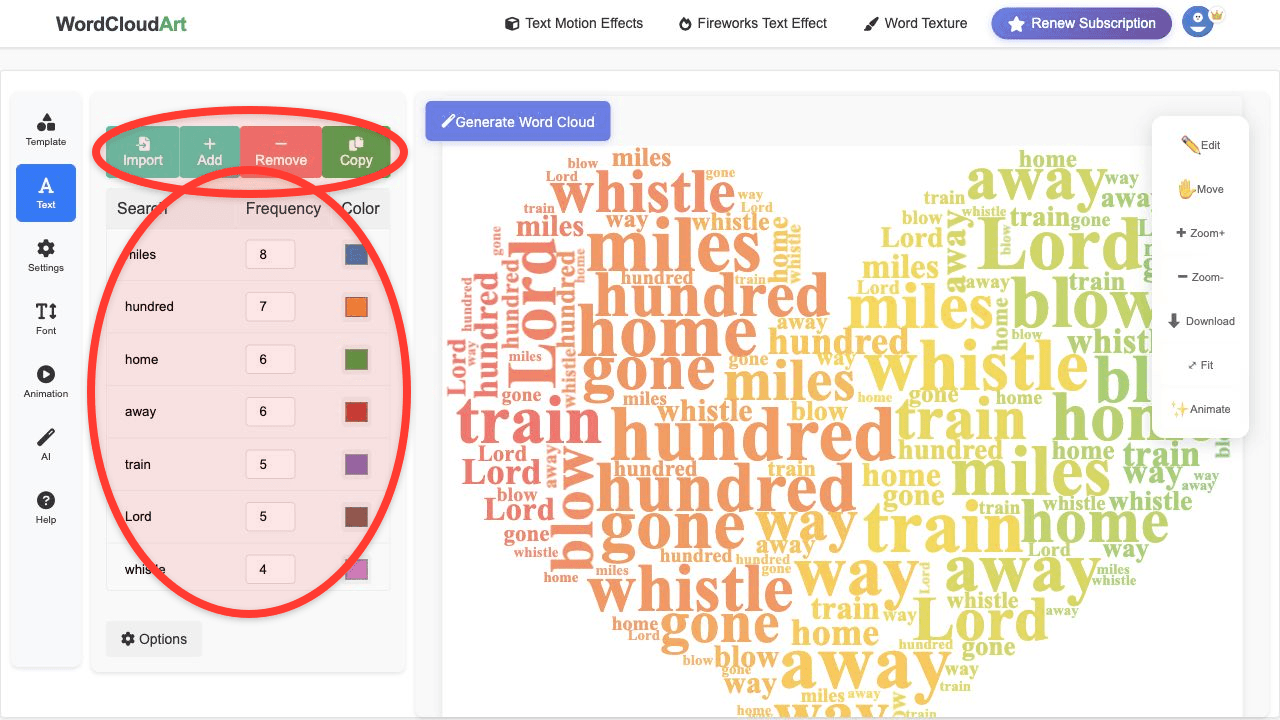
Paste this text: customer service, onboarding, pricing, roadmap, integration, support, support, support, dashboard, reporting, performance, trust, renewal, team workflow, customer service.
Suggested shape: speech bubble or presentation screen.
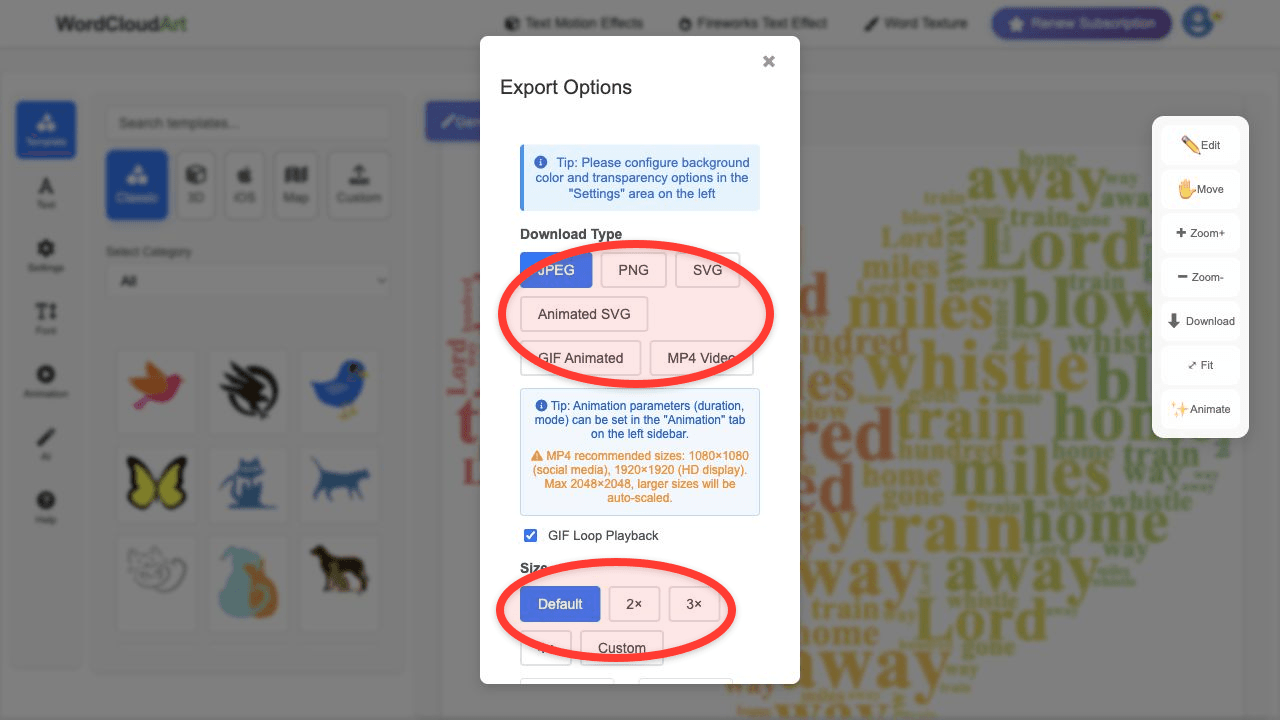
Suggested export: PNG for a normal slide, MP4 for an animated opening slide.
Step-by-Step Workflow
- Open Wordcloud.art and paste your presentation keywords, audience responses, or meeting notes.
- Remove generic words and group important phrases such as "customer feedback" or "brand strategy".
- Choose a shape that matches your slide topic, such as a speech bubble, chart, globe, heart, or product-related icon.
- Customize colors to match your PowerPoint theme.
- Export the word cloud as PNG for static slides, or use a video export when you want motion.
- In PowerPoint, choose Insert > Pictures or Insert > Video and place the exported file.
Best Uses in Presentations
- Opening slide: show the key themes before a talk begins.
- Survey results: turn audience feedback into a visual summary.
- Workshop recap: summarize sticky notes or brainstorm answers.
- Closing slide: reinforce the terms you want people to remember.
Slide Layout Tips
- Use a transparent or light background if the slide already has brand colors.
- Keep the largest words away from the very edge so they do not get cropped in projector mode.
- Use fewer than 80 words for executive slides; use more words only for workshop or classroom recap slides.
- Match the word cloud palette to your PowerPoint theme for a more professional look.
FAQ
Does PowerPoint have a word cloud generator?
PowerPoint is primarily a presentation tool. For custom shapes, keyword weights, and visual styling, use a dedicated generator first and insert the result into PowerPoint.
Can I use an animated word cloud in PowerPoint?
Yes. Export a motion or 3D word cloud from Wordcloud.art as a video, then insert it into the slide.
What format should I export for PowerPoint?
Use PNG for most slides. Use video when the word cloud needs movement or a stronger opening effect.